

How an import works
An import takes four steps. Nothing is saved until you run it in the last step.
- Source: choose an Excel or CSV file, or paste a table you copied. If there are several sheets, choose the one to use.
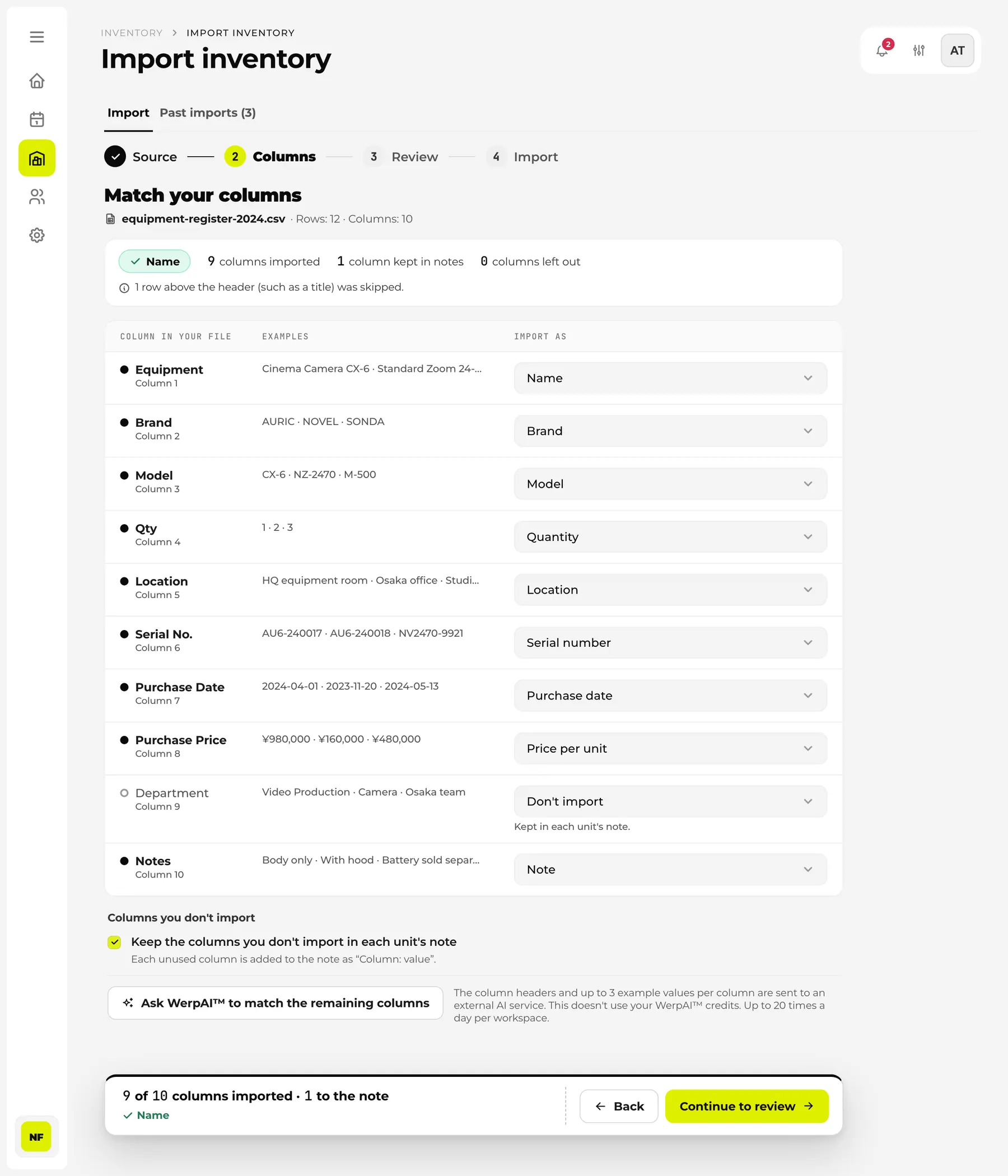
- Columns: check what each column in the file will be imported as. Targets chosen automatically from the headers are already filled in.
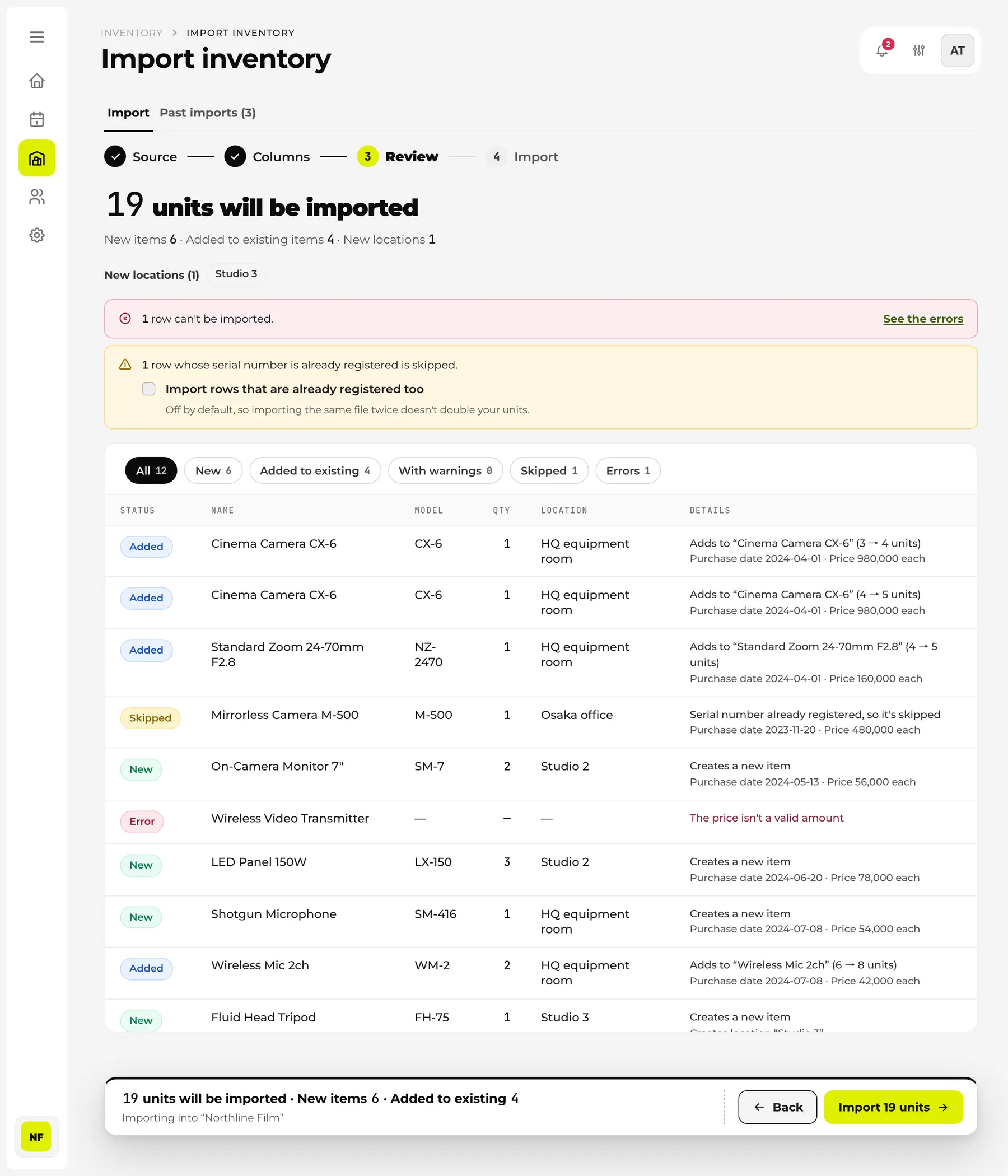
- Review: check, row by row, which rows become new items, which add units to a registered item, and which can't be imported.
- Import: run it. When there are many rows, they are sent 200 at a time, with progress shown.
Before you start
- Only admins can use import. It is available on every plan, including Free.
- You start from the ▾ next to “New Equipment” on the inventory page: choose “Import from Excel/CSV”, then “Add new items”. The other option, “Fix existing items in bulk”, is covered in the last section of this page.
- No fixed format is needed. Column names and their order are up to you. If you are building a sheet from scratch, “Download the CSV template” gives you a template with four columns: name, model, quantity and location.
- Your plan limits (items and units) apply to imports too. If an import would go over, the review step tells you, and you can import only what fits from the top of the file or reconsider your plan.
Supported files
| Topic | Details |
|---|---|
| Format | Excel (.xlsx, .xlsm), CSV, TSV and text (.txt). You can also paste cells copied from Excel or Google Sheets. |
| Size | Up to 20 MB per file. You can review and import up to 5,000 rows at a time. |
| Sheets | For an .xlsx with several sheets, you choose which one to import. Hidden sheets are listed last and marked “Hidden”. |
| Encoding | UTF-8, Shift_JIS (CSV files saved by Japanese Excel), Windows-1252 and UTF-16 are detected automatically. Comma, semicolon and tab separators are supported. |
| Not supported | Old-format .xls, password-protected .xlsx, .xlsb, .ods, Numbers, PDF and similar. Save the file again from Excel as .xlsx or .csv, then choose it. |
What is read automatically
Real-world equipment lists are rarely tidy tables. Tables like the following can be read without cleaning them up by hand.
- A title or creation-date row above the table: Werp™ looks for the header row within the first 10 rows and skips everything above it. If your table has no header row, say so and the first row is read as data.
- Differently worded headers: “Equipment”, “Item name” or “Name” for the same field, full-width and half-width characters, and combined headers such as “Storage / Location” are all read. Japanese, English and German headers are supported.
- Merged cells: the value is spread across the whole merged range. A quantity merged vertically is divided by the number of rows (a 3 spanning three rows becomes one unit each).
- Dates: “2024/4/1”, “2024-04-01”, Japanese era dates such as “令和6年4月1日” or “R6.4.1”, “01.04.2024” and Excel date values are read.
- Amounts and quantities: “¥120,000”, Japanese notation such as “12万円” and “¥120,000-” are read, as are quantities like “3台” (3 units), “3” in full-width digits and “一式” (a set).
- Formulas: the calculated result Excel saved is read.
- Total and subtotal rows: skipped. They aren't imported as equipment.
Check the column matching
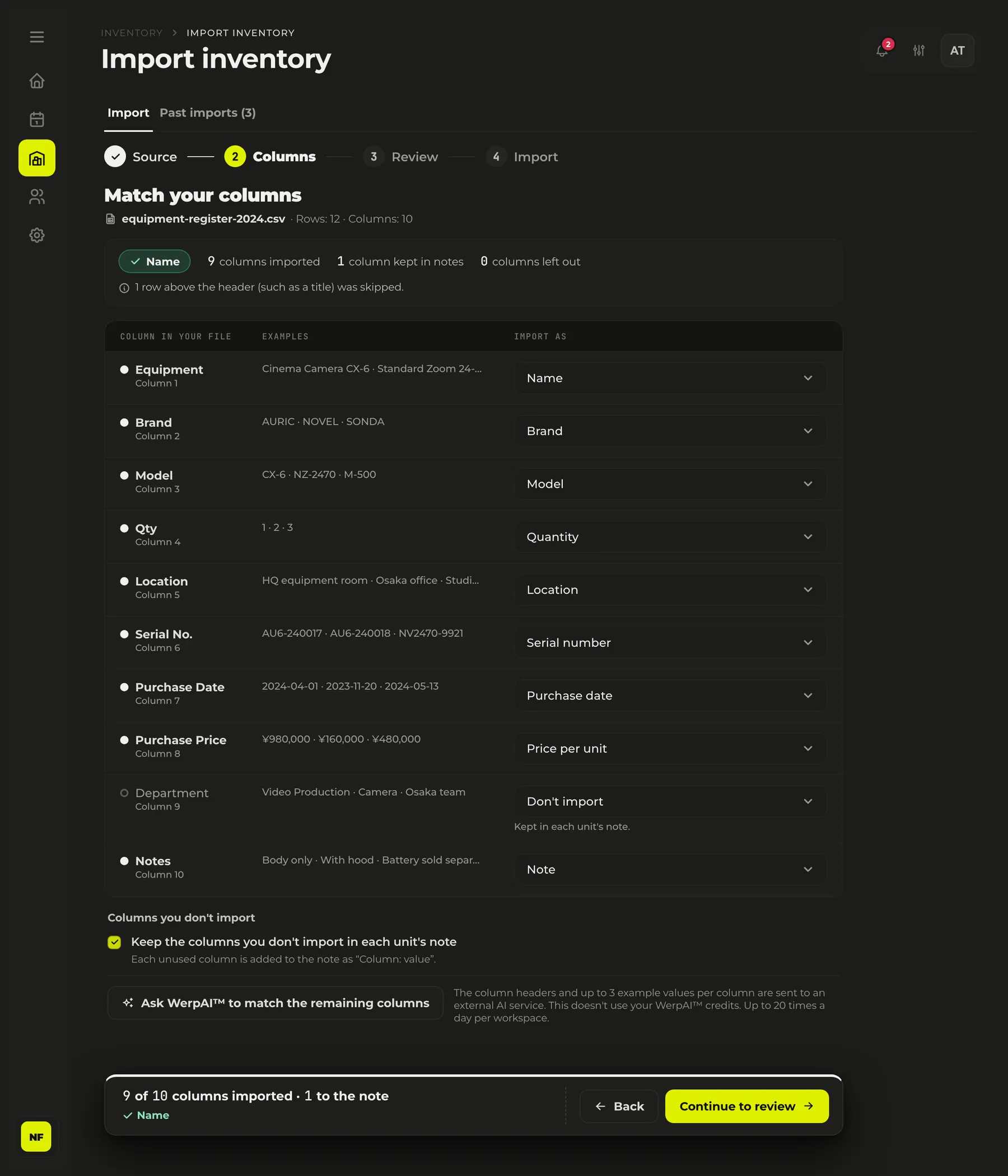
Each column in the file gets one row showing its header, example values (up to three) and its target. The target is already filled in from the header. If it is wrong, choose another. If you pick the same target for a second column, the column that had it before loses that target.
The mark next to a target shows how it was chosen. “Auto” was matched from the header, “WerpAI™” was suggested by WerpAI™, and “Changed” is one you picked yourself.
The matching you confirm is remembered in this browser, per workspace. The next time you import a sheet with the same headers, the previous matching is filled in from the start.
Let WerpAI™ handle the columns it couldn't match
For columns the headers didn't settle, “Ask WerpAI™ to match the remaining columns” lets WerpAI™ suggest a target. It runs only when you press it, and you can check the suggestions on screen before using them.
Columns with no target
Columns without a target don't have to be thrown away. By default, “Keep the columns you don't import in each unit's note” is on, and they go into each unit's note as “column: value” (running-number “No.” columns are left out). If you don't want them in the notes, turn it off.
What you can import
Targets fall into three groups: item (product information), unit (information for each physical unit) and purchase. Only the name is required.
| Group | Fields |
|---|---|
| Item | Name (required), brand, model, category, description |
| Unit | Quantity, location, serial number, asset number, nickname, owner, status, note |
| Purchase | Purchase date, price (per unit or for the whole row), vendor |
- If the name is empty but there is a brand or model, “brand model” becomes the name. Rows with the same name and model are merged into one item.
- Categories and locations are matched by name and created if they don't exist yet. For a sheet with a separate quantity column per location (for example columns for “HQ” and “Osaka”), choose “Quantity at this location” as the target for each of those columns.
- Quantity is 1 to 99 units per row, and 1 if empty. A serial number can only be attached to a row with a quantity of 1.
- Owners are matched to workspace members by email address, then user code, then name. If nobody matches, the unit stays shared and the name is kept in its note.
- Status wording such as 故障 (broken), 修理中 (under repair), 紛失 (lost), 廃棄 (disposed of) and 売却 (sold) is read. A unit that is retired needs a reason, taken from the status text or from a reason column. The statuses checked out and reserved are not imported.
- For amounts, you choose whether the figure is per unit or for the whole row. Per unit, each unit in the row gets the same amount. A row with an asset number (for example a set recorded as one asset) is different: the first unit gets the amount times the quantity. A row total also goes entirely on the first unit of that row.
- Images pasted into Excel can't be imported. You can add photos after the import with WerpAI™ (see “Fill in photos and links” on this page).
Review before importing
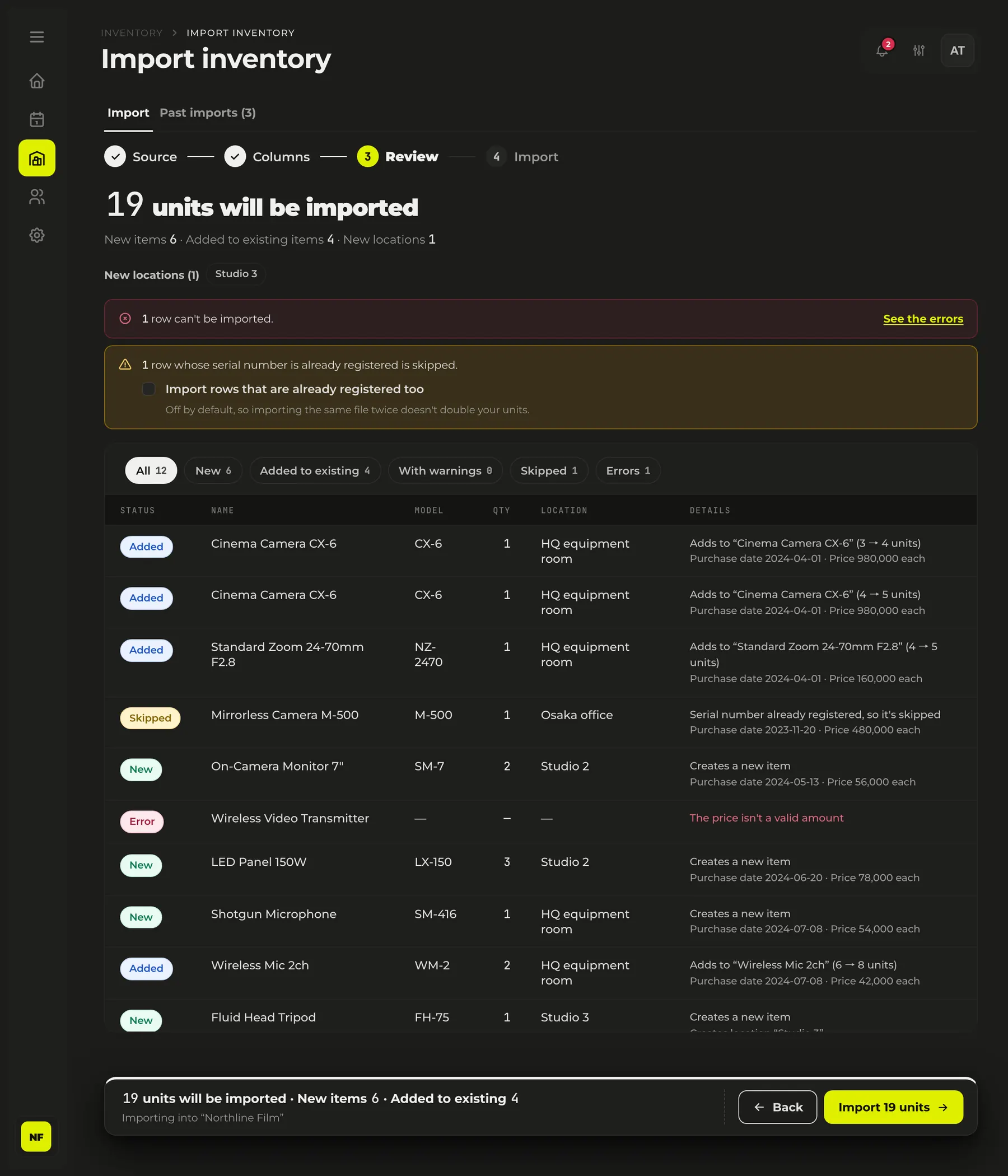
The review step does the same matching as the real run, without saving anything. At the top is a headline such as “19 units will be imported”, and below it, how each row will be handled.
- New: registered as a new item.
- Added: adds units to an item that is already registered. The count before and after is shown (for example 3 → 4 units).
- Skipped: a row whose serial number is already registered. Rows with a serial number aren't added twice if you import the same file again (rows without one are added again).
- Error: a row that can't be imported. The field that couldn't be read and the reason are shown.
The review also shows the categories and locations that will be created, the purchase dates and amounts as read, asset numbers that overlap with other units, and the unit count after the import against your plan limit. If the same file was imported before, it shows when and by whom.
Running the import
Rows are sent 200 at a time, with progress shown. One failed row doesn't stop the whole import.
If the connection drops partway, you can choose “Retry the remaining rows” or “Finish and see results”. Retrying never registers a row that was already sent a second time.
Rows that weren't imported can be taken out with “Download the rows that weren't imported (CSV)”. The reason is in the last column, so you can fix the file and import it again.
History and undo
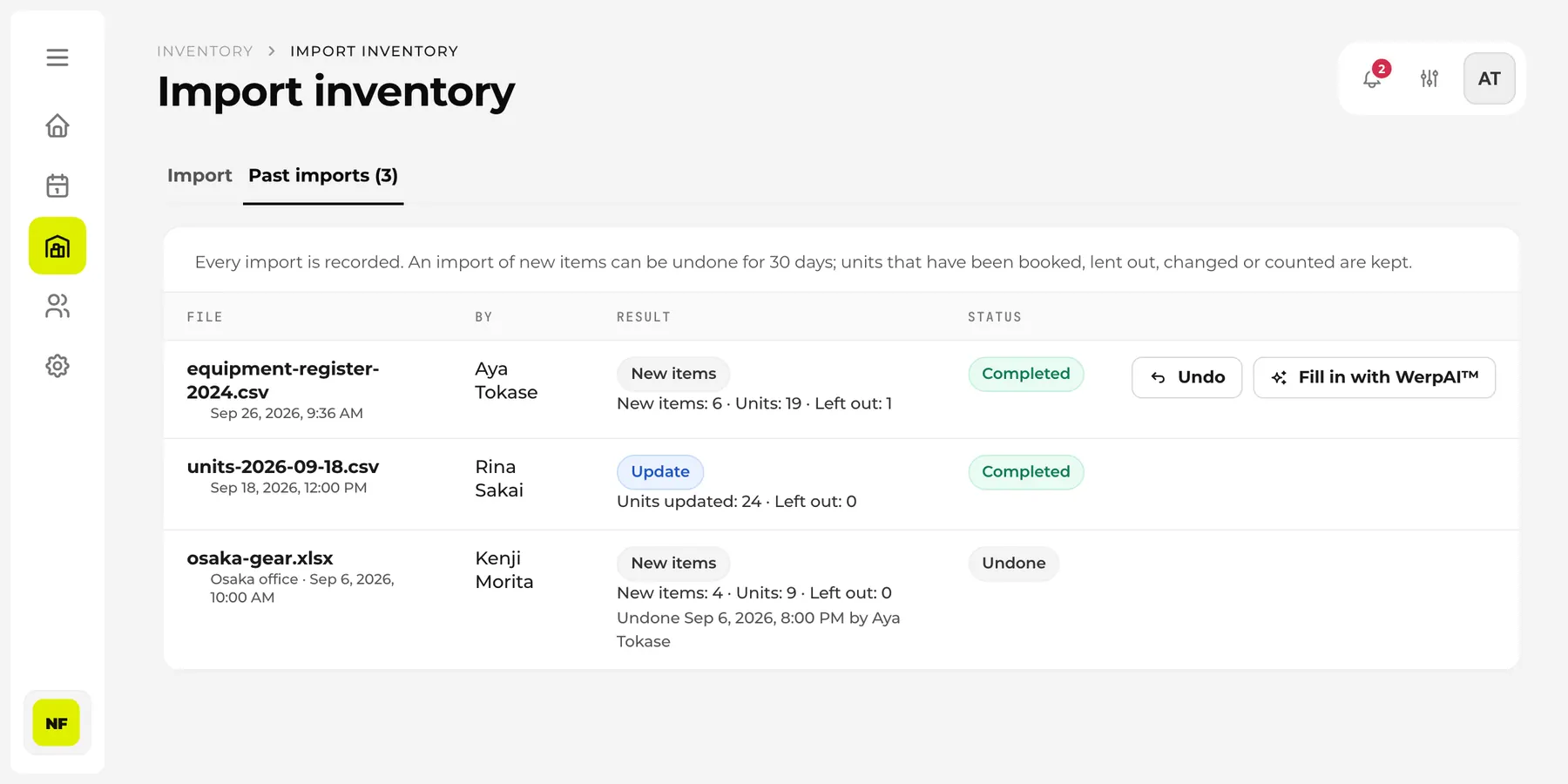
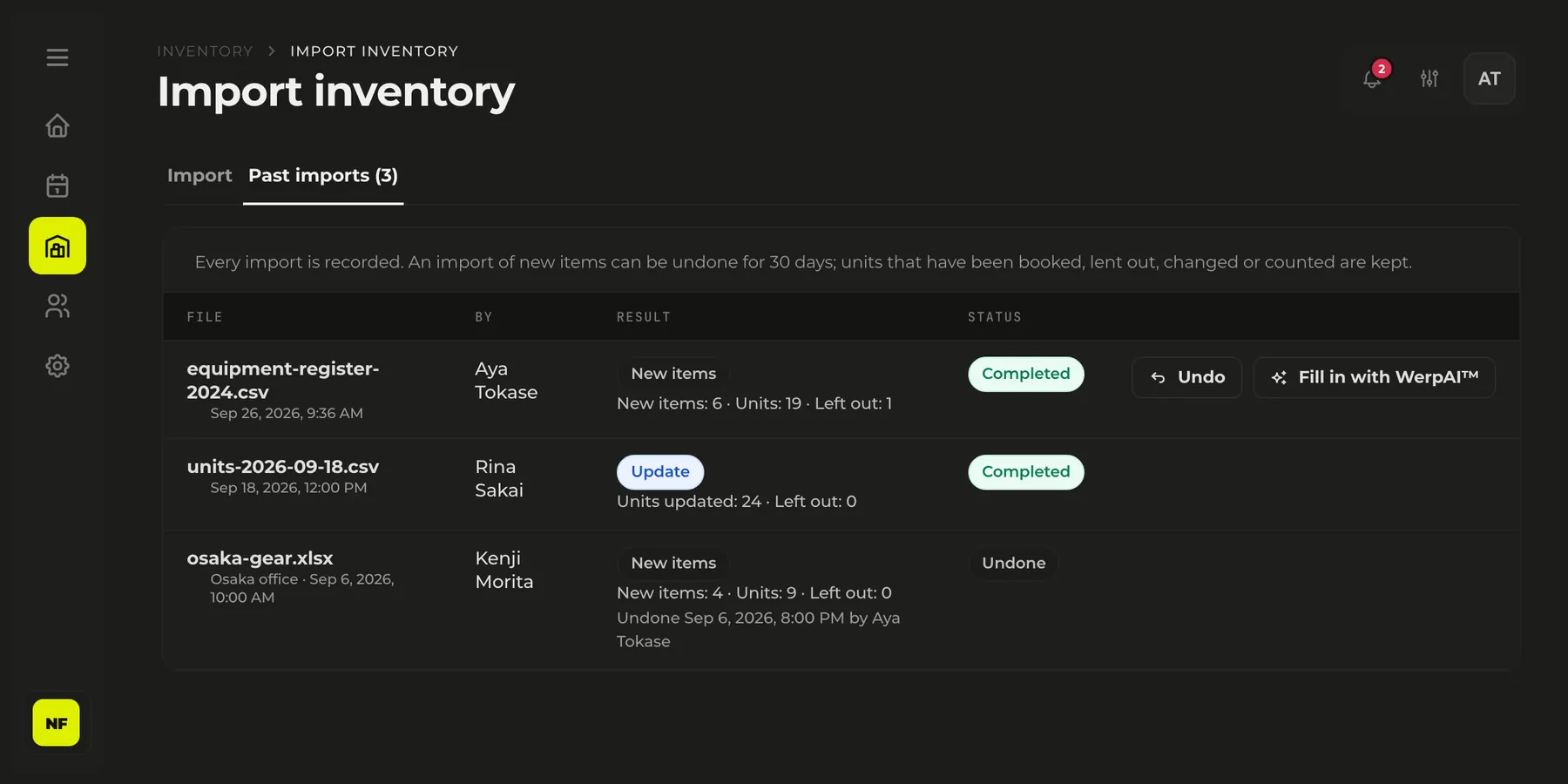
Every import is recorded in “Past imports”, which lists the file name, who ran it, the result and the status (Completed, Not finished or Undone).
An import that registered new items can be undone with “Undo” within 30 days. Before you undo, you see how many units will be removed and how many will be kept, and why. Undoing is a soft delete, and bookings are never removed.
What an undo keeps
Units that came into use after the import are kept, even when you undo it.
- Units with a booking record (finished bookings included) and units that are checked out or reserved
- Units that were edited, scanned or counted in a stocktake after the import
- Units with a Google Calendar link, a Kiosk or photos set up
Items, categories and locations the import created are removed when nothing else uses them and nobody has edited them since.
Fill in photos and links
When an import is done, “Fill in photos and links with WerpAI™” can fill the blanks of new items that have a model code. You can also run it later with “Fill in with WerpAI™” in the history. It handles up to 50 items at a time.
- If the model matches one in Werp™'s catalog, brand, description, link and photo come from the catalog. No credits are used in this case.
- If the catalog doesn't have it, a WerpAI™ search is used, at up to 1 credit per item. Only a link and a photo from a page whose title contains the model code exactly are added. If it isn't certain, nothing is added.
- Only blanks are filled. What you entered isn't overwritten. Items without a model code are left out.
At import time too, if a model code matches exactly one catalog model and the brand doesn't conflict, an empty brand and description are filled in for free. No photo is added.
Fix existing items in bulk
To correct the location, owner, status and more of registered units at once, edit the unit list exported from the asset ledger in Excel and import it again.
- From “Tools” on the inventory page, open the Asset ledger and press “Export units (CSV)”.
- In Excel, change only the columns you want to correct. The other columns can stay as they are.
- On the import screen, choose “Fix existing items in bulk” and pick that file.
Units are matched by unit code (the item_code column). Before anything is saved, “Review the changes” lists “field: before → after” for each unit, and nothing changes until you press “Update”.
You can change nickname, location, owner, asset number, serial number, purchase date, purchase price (per unit), vendor, note and status (including the retirement reason and date). Name, brand, model, category and description are not changed here.
- Empty cells leave the current value as it is. To clear a value with an empty cell, turn on “Clear values that are empty in the file” (status, retire reason and retired date are not cleared).
- A file can't change the status of a unit that is checked out, and it can't set a status to checked out or reserved.
- Bulk updates can't be undone. They stay in the history as “Update”.
When something goes wrong
| Problem | What to do |
|---|---|
| An .xls file can't be read | Open it in Excel, save it again as .xlsx or .csv, then choose it. |
| More than 5,000 rows | Split the file into parts of 5,000 rows or fewer and import them one after another. |
| A column went into the wrong field | At the column matching step, choose the target again. The matching is filled in from the start next time. |
| Month and day got swapped in dates | Write the dates in the file year-first, such as “2024-04-01”, then import again. |
| Some rows weren't imported | See the reasons in “Download the rows that weren't imported (CSV)”, fix them, and import just those rows again. |
| Imported by mistake | Within 30 days, undo it from “Past imports”. |