

What a set is for
A set contains specific units, not a type and a quantity. You decide that “Camera case A” holds this body and this lens, matching the real case one to one, so on return you can check against the record what hasn't come back.
Gear that isn't kept in a case and is combined differently each time doesn't need a set: pick several items in a new booking and book them together.
Creating a set
Only admins can create, edit and delete sets. Creating takes two pages, “Choose contents” and “Name and main units”, and the step row at the top takes you back to the previous page.
- On the “Inventory” page, open “Tools” and choose “Create set”.
- On “Choose contents”, pick the first item from the list. For each further item, press “Add another item” and pick it from the list that opens on top.
- On each item’s card, choose the units that are really in the case. Each item starts with one available unit, and an item with several units opens its card so you can tick a different unit if needed.
- Press “Next”. On “Name and main units”, enter the name, description and where the set is kept, and make each item a main unit or an accessory.
- Press “Create set” to open the new set’s page.
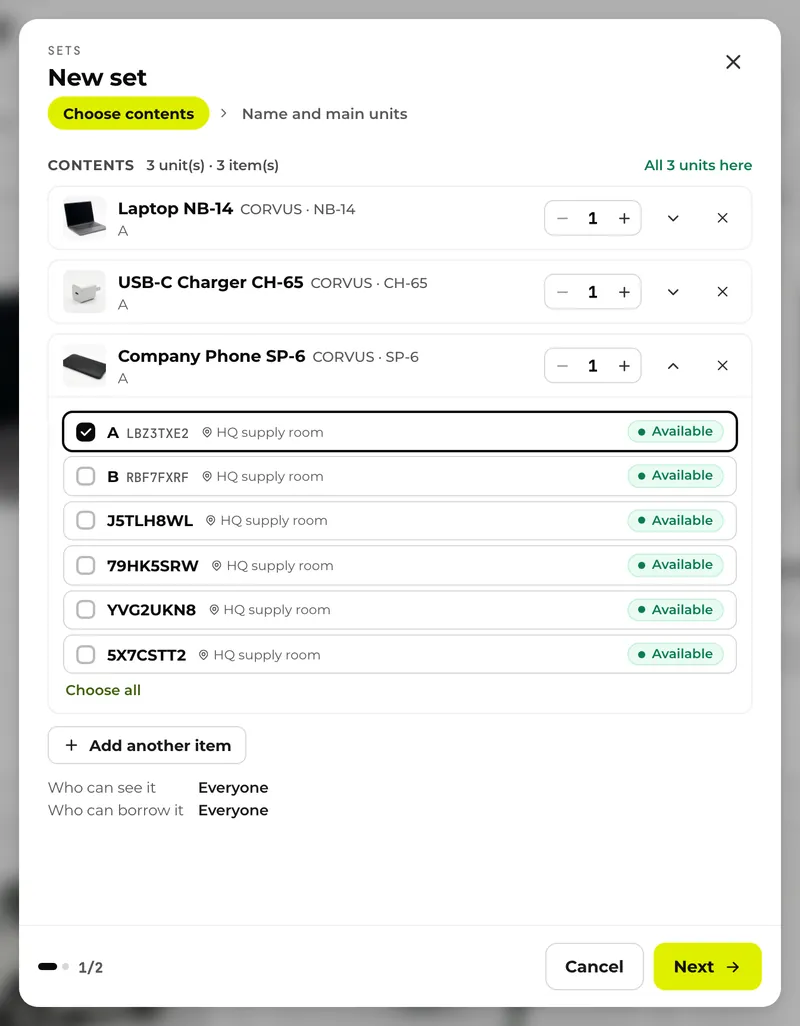
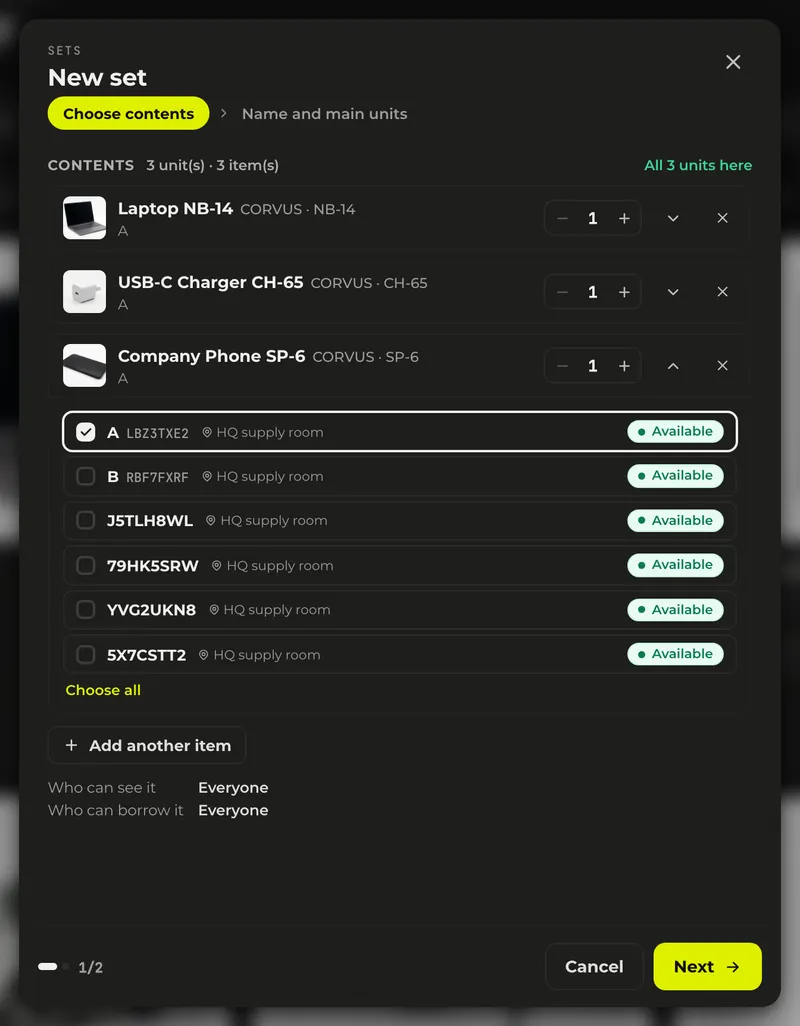
- A set holds up to 50 units. A unit can belong to only one set, so units already in another set and retired units are not offered.
- Starting from “Make a set” in a unit’s ⋮ menu on the item’s page opens the form with that unit already in as a main unit. You can also select cards or rows in the inventory list and choose “Make a set” in the bar at the bottom; “Next” then stays disabled until you have chosen the units of every item that has several. For things that all go in, like batteries, “Choose all” adds every unit.
- If you leave the name empty and press “Next”, it is filled in from the first main item as “… set”. Choosing a place under “Kept at” moves every unit in the set to that storage location and records the move in each unit’s history; “Leave as it is” keeps their current locations.
Choosing main units and accessories
Every item in a set is either a main unit or an accessory. Make the item the set is built around, such as a laptop or a camera body, a main unit, and what goes out with it, such as chargers and cables, accessories. A set needs at least one main unit.
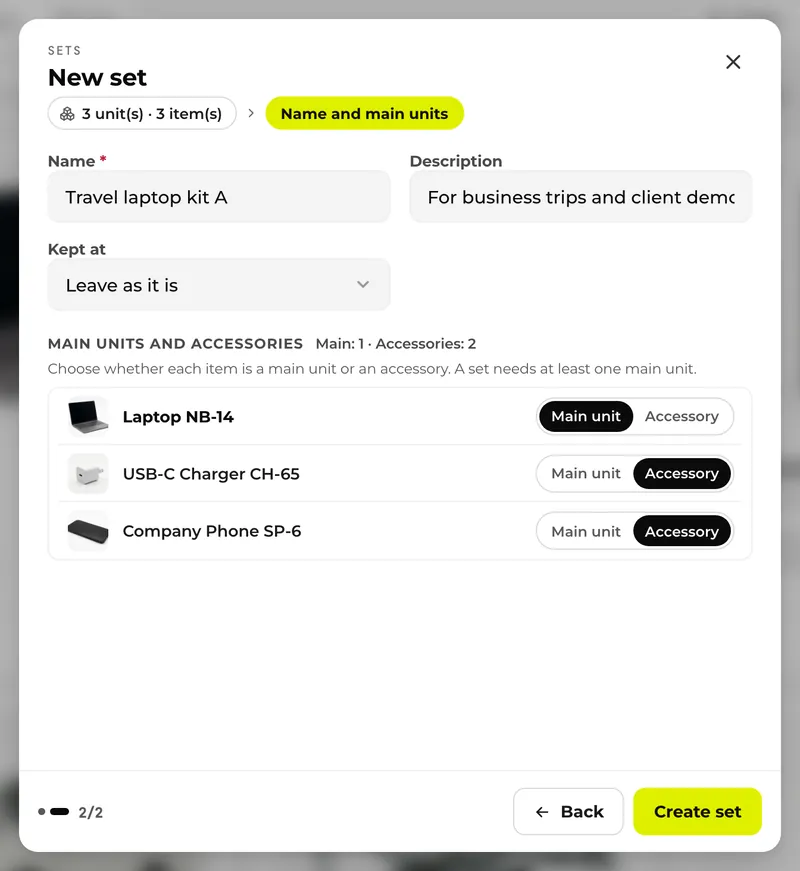
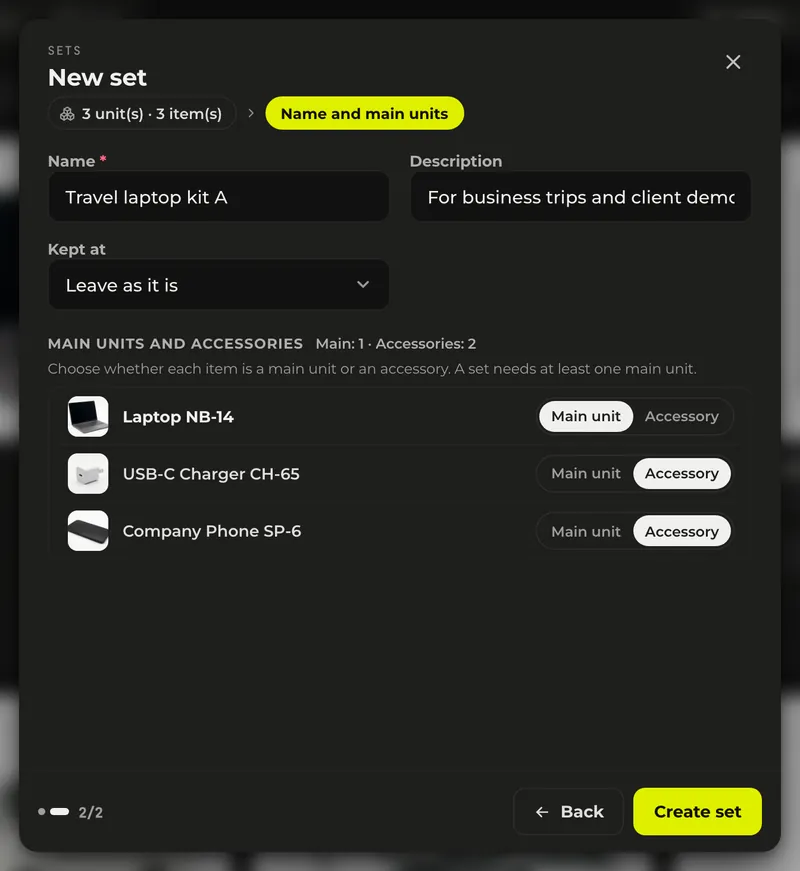
- On “Name and main units”, the “Main unit | Accessory” switch at the right of each item’s row sets its role. All units of the same item share that role.
- The first item you add comes in as a main unit, and items added after a main unit come in as accessories. A set made from items selected in the inventory list starts with everything as main units.
- While there is no main unit, the page says “Choose at least one main unit” and the set can’t be saved.
- Role changes are recorded in the set’s history, which admins see, as “Made a main unit” or “Made an accessory”. In sets made before roles existed, every item is a main unit.
Booking a set
Booking a set creates one booking for each unit inside, grouped together.
- Press “Book” on the set’s page. On an item’s detail page, “Book the set” on the card of a unit in the set opens the same screen.
- On “Book set”, choose the start and end.
- Check the box at the top to see whether everything in the set is free for that time. If not, it reads “N missing for this time” and lists each missing unit with the reason, such as whose booking it overlaps or that it is in maintenance.
- Check the title and borrower and press “Book the set”; the booking then opens. If something is missing, the button reads “Book N without them” and books only the rest.
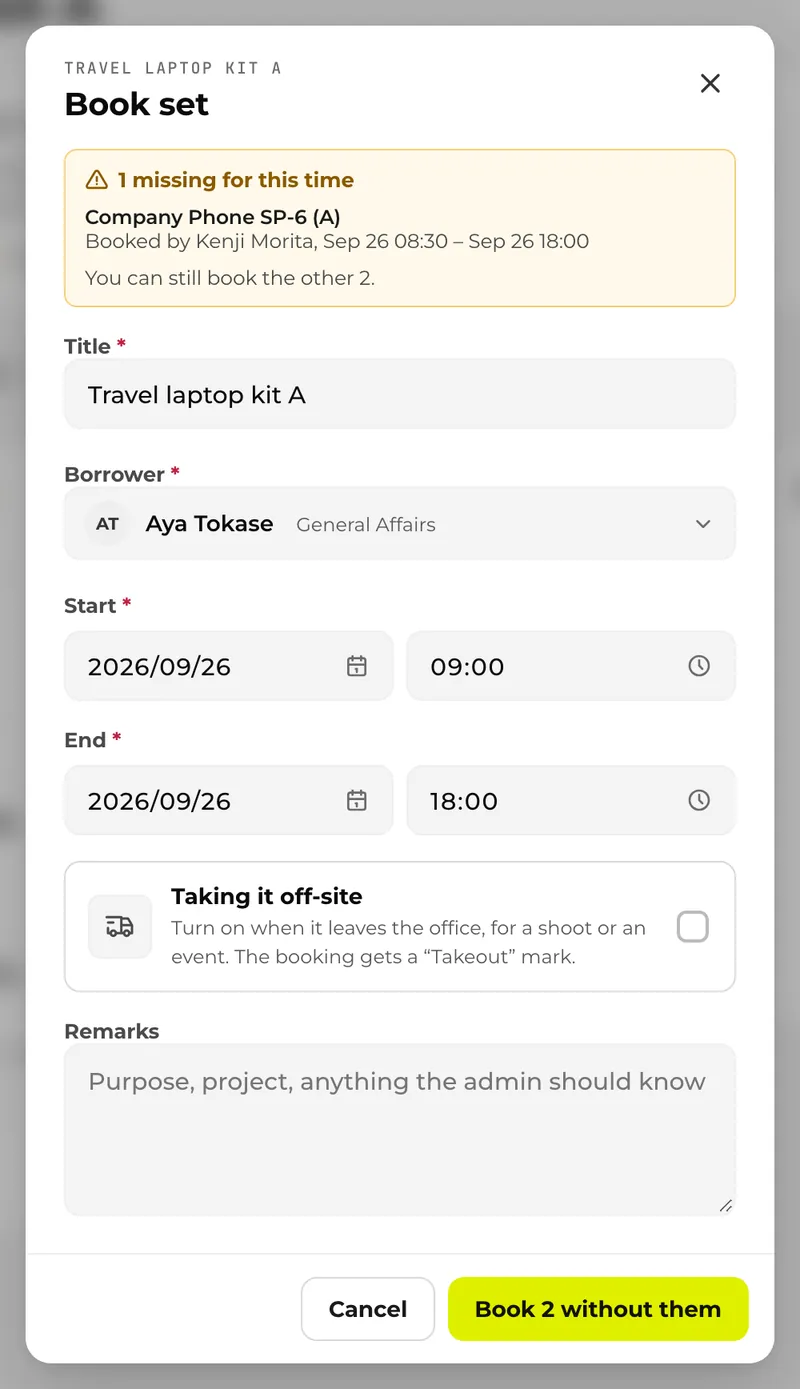
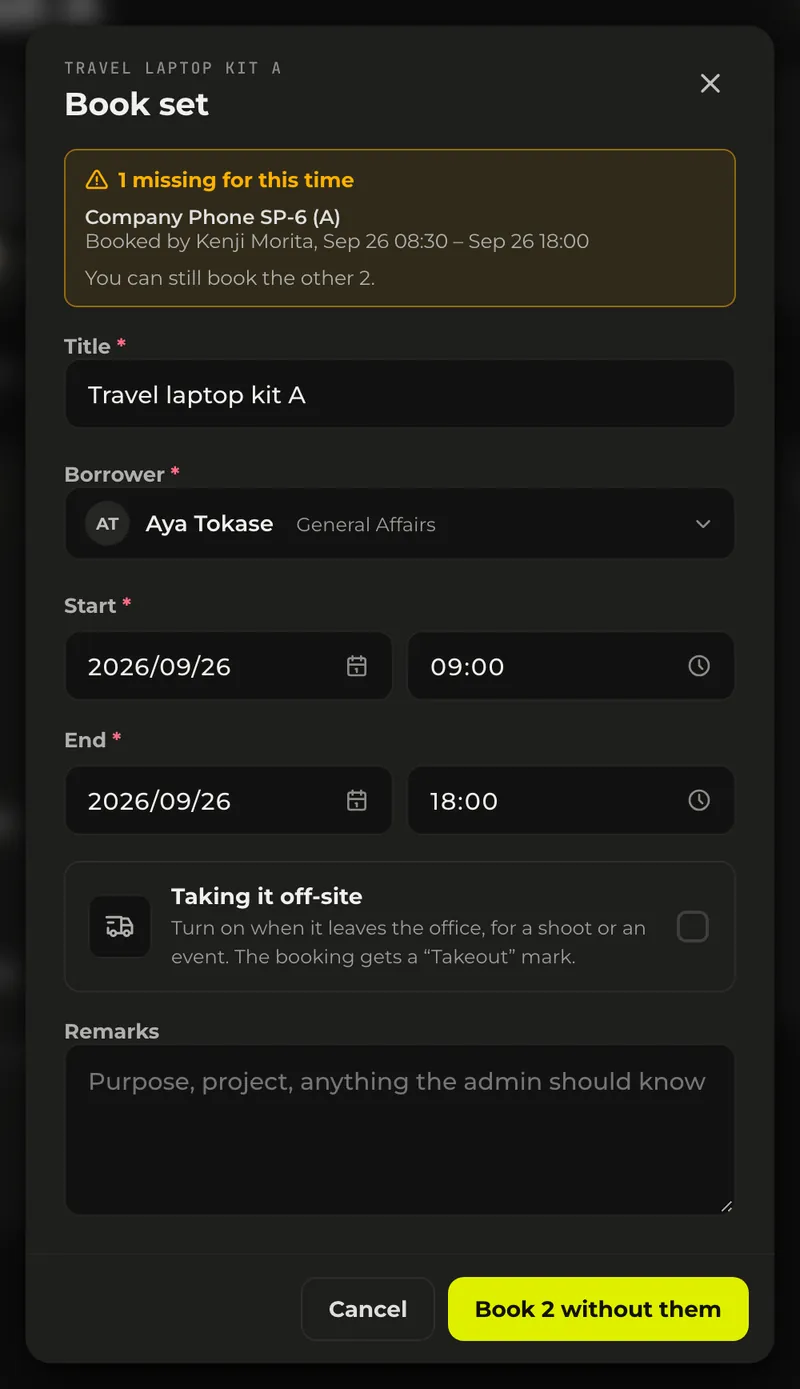
- The borrower starts as you, and only admins can change it to someone else. If nothing in the set is free for the period, it can’t be booked.
- Tapping a free day under “Coming up” on the set’s page, or dragging across the calendar on its “Bookings” tab, opens the screen with that day or period already filled in.
- In the month, week, day and list views of the calendar, a set’s booking shows as one bar. That bar can’t be dragged to new dates.
Picking up a set or taking it now
On the day, press “Pick up the set (N)” on the booking. While there is a booking to pick up today, the set’s page shows the same button.
- The checklist “Check what you’re taking” opens. Untick anything you don’t have with you and press “Take N”. Unticked units stay booked and can be picked up later.
- When you open it from the set’s page, units that aren’t available right now start unticked.
To take the case right away without a booking, use “Take it now” on the set’s page. It starts the moment you press it: choose the borrower and “Back by”, and the set is checked out. “Back by” defaults to 18:00 the same day, or 18:00 the next day if you open it after 17:00. If something is missing, the button reads “Take N without them”.
Returning a set
What was taken out as a set is returned together, checking the contents as you go.
- Press “Return the set (N)” on the set’s page or on the booking.
- The checklist “Check what came back” opens with everything ticked. Untick whatever hasn’t come back.
- Press “Return N”. Werp™ says “Set returned” when everything is back, or “Returned N. M stay checked out.” when only part is.
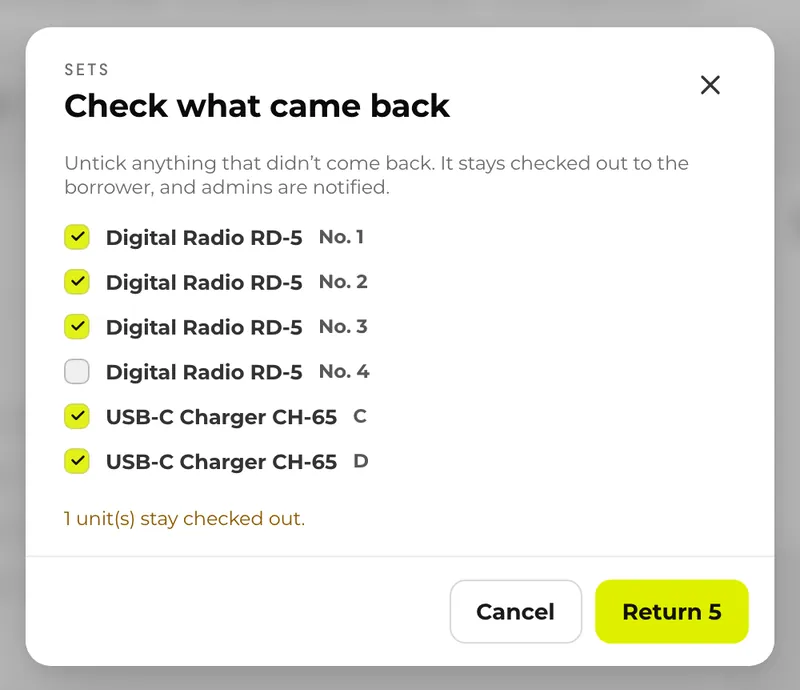
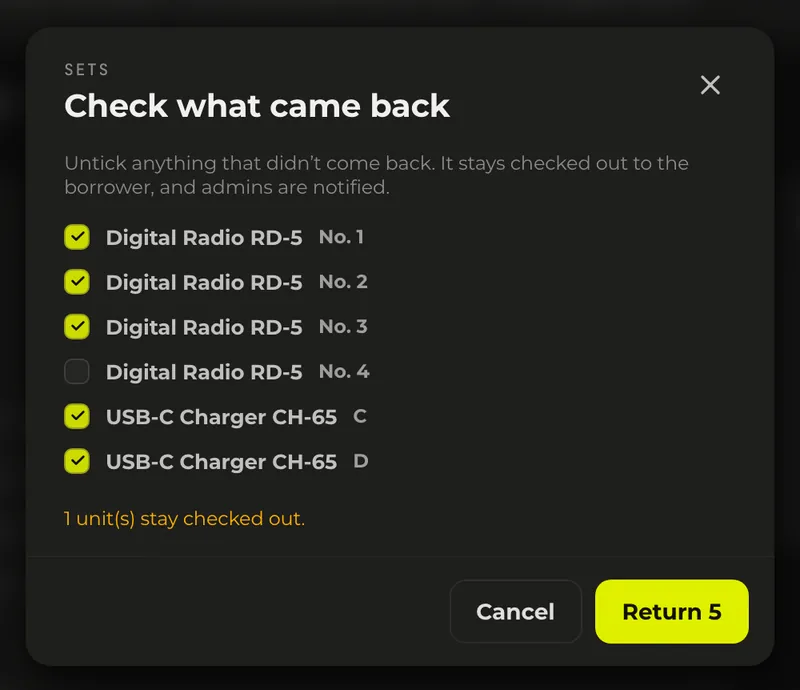
When something is missing:
- Unticked units stay checked out to the borrower, and return reminders and overdue notifications continue as usual. When the rest comes back, return it with the same button.
- Admins (except the person returning it) get a “Set returned incomplete” notification with the set’s name, how many units are missing and who borrowed it.
The set's page
A set’s page is where you check and fix what is in the case. Open it from the set strip on a unit’s card on an item’s page, from the set’s name in the units table, or from the set tag on a booking.
- Top card: a cover made from photos of the contents, “Set · N unit(s) · M item(s)”, the description, how it is now (“All N units here”, “N missing”, “Out”, “Overdue” or “Booked”), who has it until when, and where it is kept.
- Buttons on the right: they follow the state, with “Return the set” while it is checked out, “Pick up the set” when there is a booking to pick up today, and otherwise “Book” and “Take it now”.
- “Contents” tab, which opens first: the items and their units below them, in “Main units” and “Accessories” tiers. Only units that aren’t available get a status tag, along with who has them until when, so this is where you see what is missing.
- “Coming up”: a strip of the next 14 days (Free, Part of it out, All out) and up to five upcoming bookings. Tapping a day that isn’t all out opens a booking for that day.
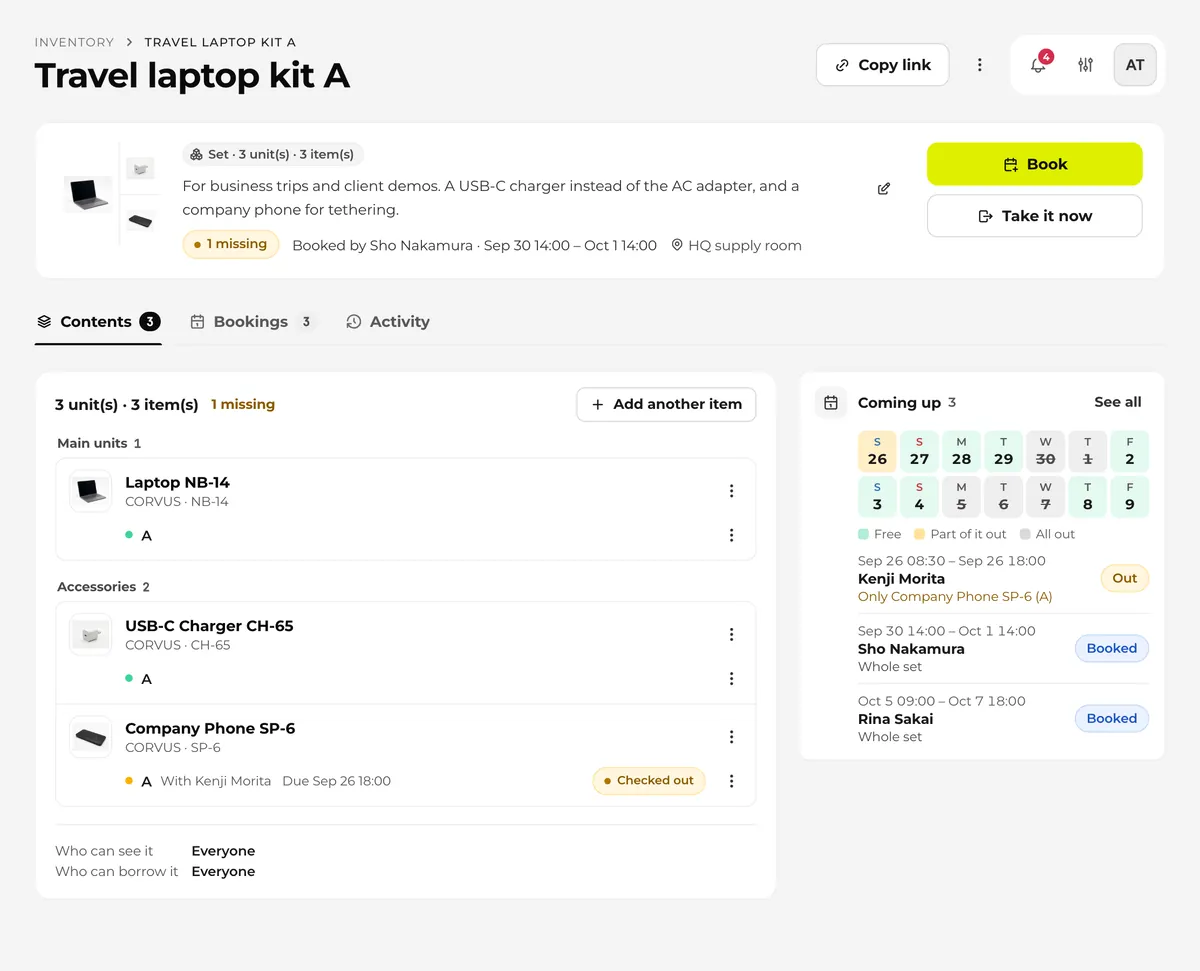
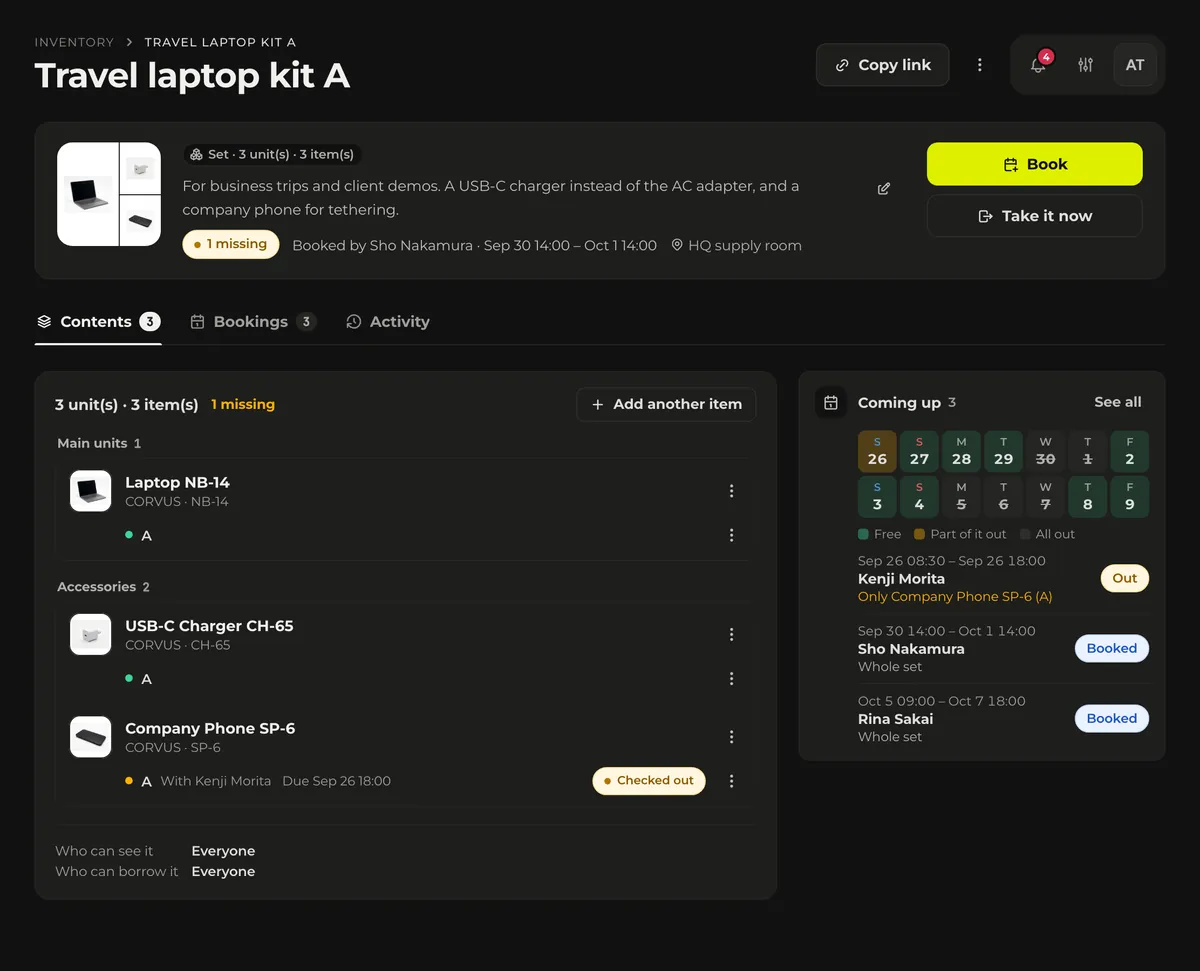
The “Bookings” tab shows the set’s bookings and single-unit bookings of its contents as a calendar, Gantt chart or list, and the “Activity” tab lists the history of the units inside. The history of creating and editing the set itself appears only for admins.
Admins can fix the contents on this page. “Add another item” adds an item. An item’s ⋮ menu has “Add units”, “Make it an accessory” (or “Make it a main unit”) and “Remove this item”, and a unit’s ⋮ menu has “Swap for another unit” and “Take out of the set”. The last unit can’t be removed, and no change can leave the set without a main unit.
The pencil button edits the name and description in place. To change everything, including where the set is kept, use “Edit everything” in the ⋮ menu at the top right. “Delete” in the same menu deletes the set but keeps its units and existing bookings, and the units can then go into another set.
Sets in the inventory list and on item pages
The inventory list doesn't show sets themselves; the items inside are listed like any other item. Items whose units are all accessories in a set, though, are left out at first, and you reach them from the main item's detail page. Turn on “Show accessories”, to the right of the sort menu, to list them too.
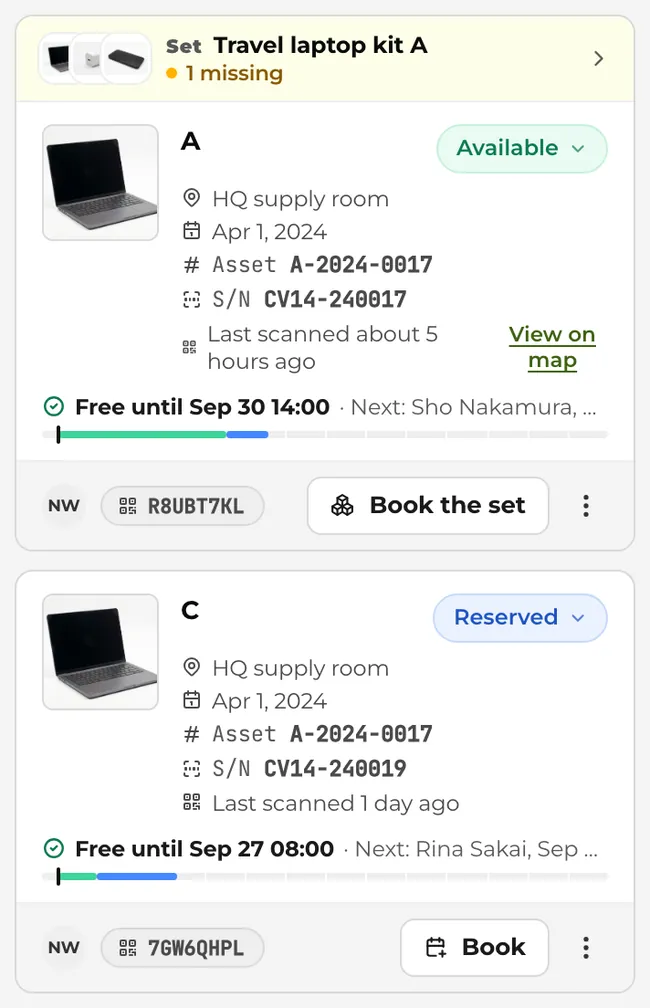
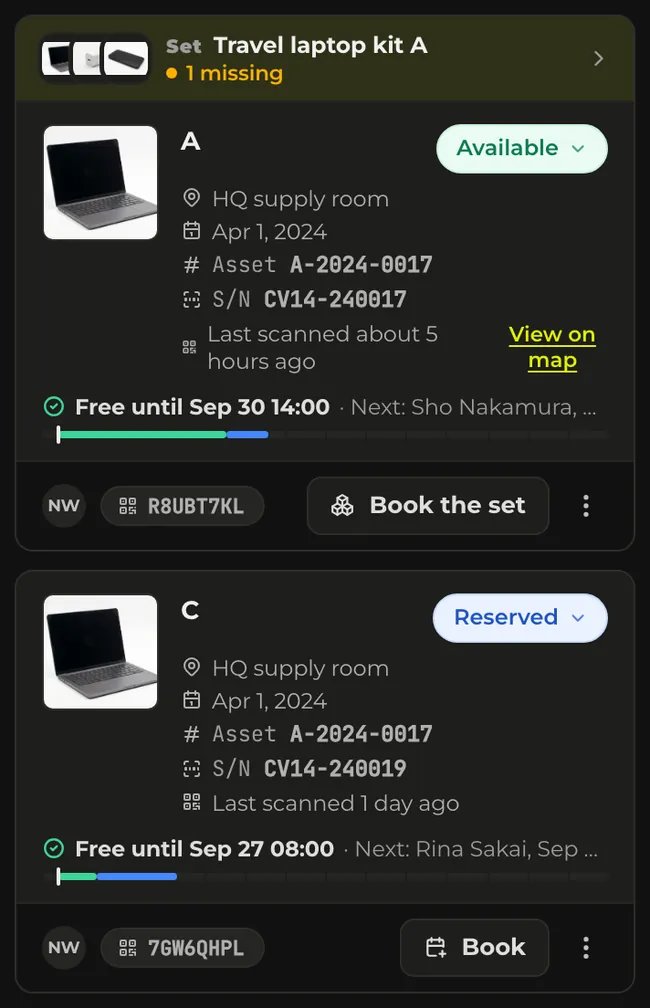
- Under “Free units” on an item's detail page, the card of a main unit shows its set at the top, with the name and whether it is complete. Tapping it opens the set's page.
- On an accessory's card, the strip leads with the main item: its photo and “Accessory for …”, followed by the set's name and status.
- When two or more units of the same item are in the same set, their cards join into one: one set strip, then each unit's card with nothing left out, so a unit that isn't free still shows its status and schedule bar. Up to two cards show; from the third, a line says how many more there are. At the bottom are “Main N · Accessories M” and “Book the set”; to book one unit, use its ⋮ menu.
Who can see and borrow a set
Because a set is one physical case, only people who can see everything in it can see it, and only people who may borrow everything in it can book it as a set. If the items inside have user groups for visibility or borrowing, the overlap decides; admins are not checked.
- Members who can't see even one item inside can't open the set's page. Its accessories appear on their own in their inventory list, even with “Show accessories” off.
- When a member who may not borrow something inside tries to book the set, the booking screen says why and the button stays disabled. Werp™ never books the set with the restricted contents left out.
- When an admin creates a set or adds to its contents, the edit screen sums up “Who can see it” and “Who can borrow it”. If the items have different groups, it suggests making them the same, and a set that no one but admins could see or borrow can't be saved.
- If an item's groups change later, its units stay in the set; instead, the set's page shows admins the same summary and a warning. A set can always be saved when units are only being removed.
Booking a unit from a set on its own
Units in a set can still be booked and checked out on their own, so common practice such as taking only the batteries stays possible.
On the booking screen, free units outside sets are listed first, and automatic selection picks those too.
- If you pick a unit in a set, the screen says “This unit is in … Booked on its own, the set is incomplete for this period.” “Book the whole set” switches to booking the set and keeps the dates and borrower you entered.
- On an item's detail page, the button on the card of a unit in a set reads “Book the set”. To book only that unit, choose “Book just this unit” from the ⋮ menu (the units table works the same way).
- While units are in use on their own, the set’s “Contents” tab shows their status and who has them, and “Coming up” lists such bookings as “Only …”.