

When to use it
If you want to hold dates in advance, make a booking instead. Scan to lend records what is leaving now.
Opening the screen
Open it from “Scan to lend” at the top of Home, the button with the same name at the top of the Bookings page, or the “Tools” menu on the Inventory page. It works on phones and PCs.
- Members can lend only to themselves. Admins and managers can choose a “Borrower” and lend to someone else.
- The first time you use the camera, the browser asks for permission. If you don’t allow it, you can still type codes or use a USB barcode reader.
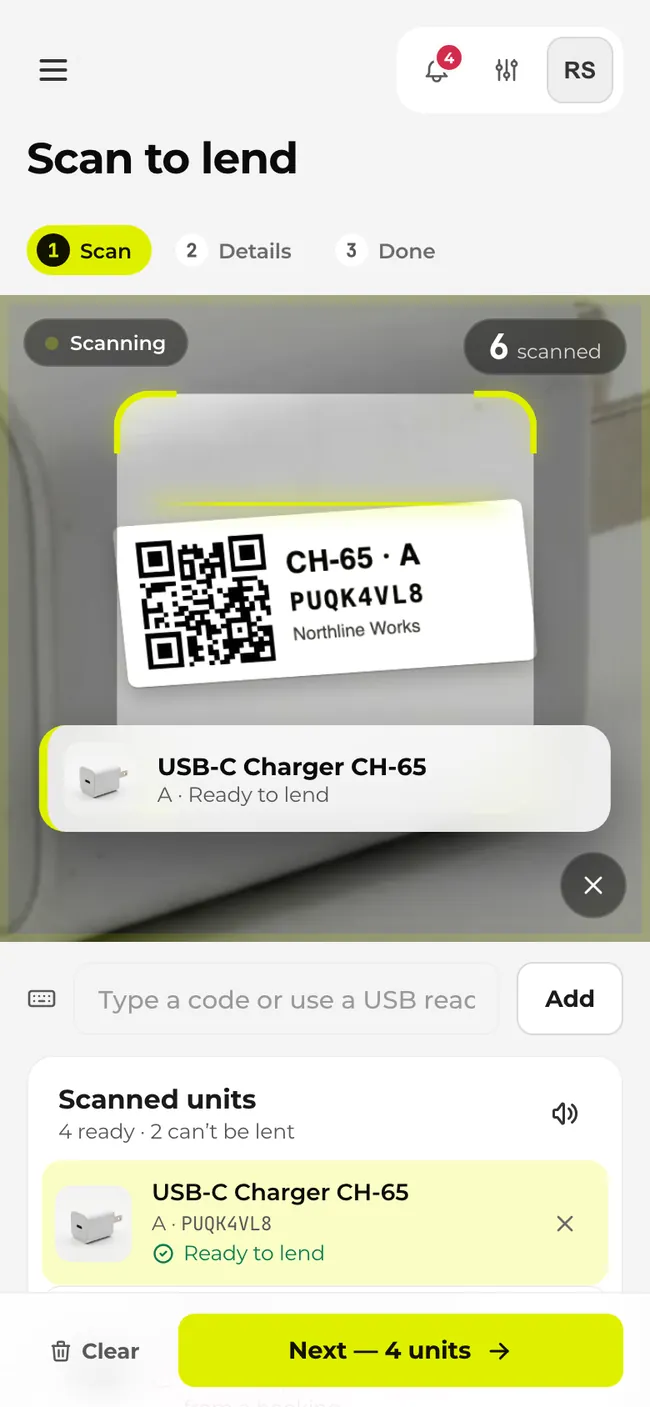
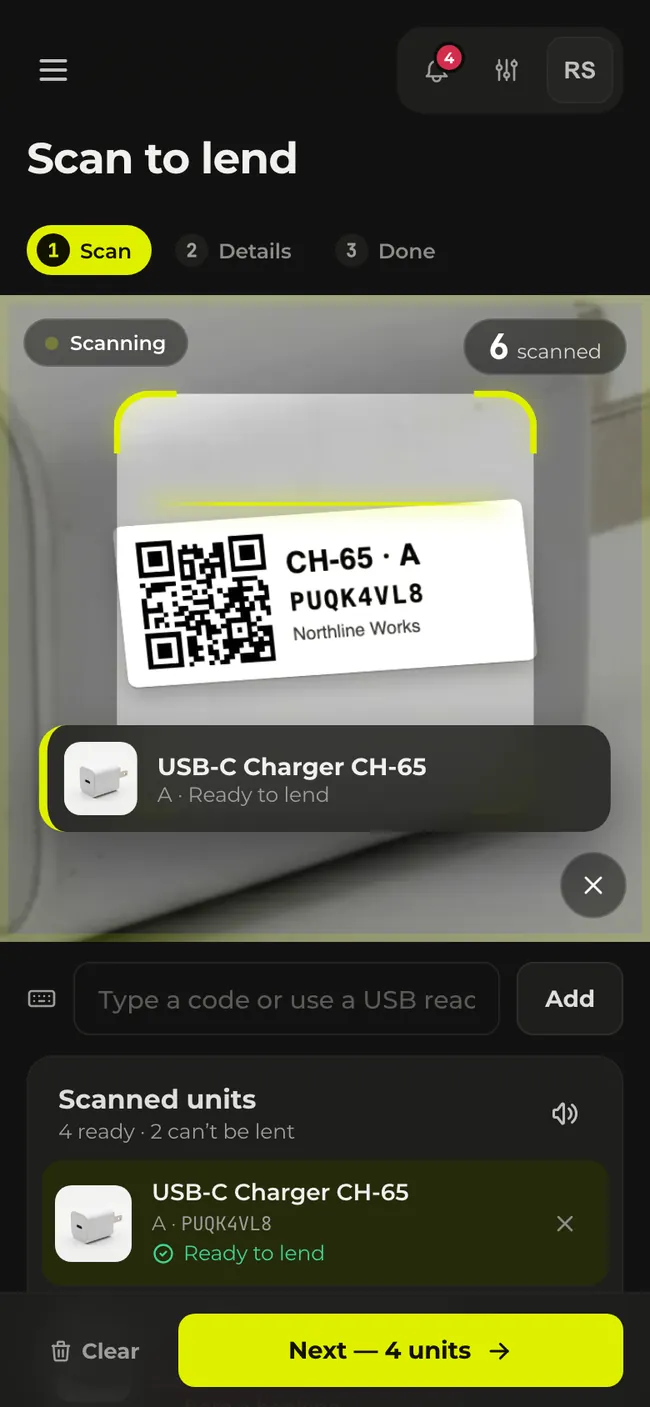
Scanning labels
- Tap “Start scanning” and point the camera at a unit’s QR label.
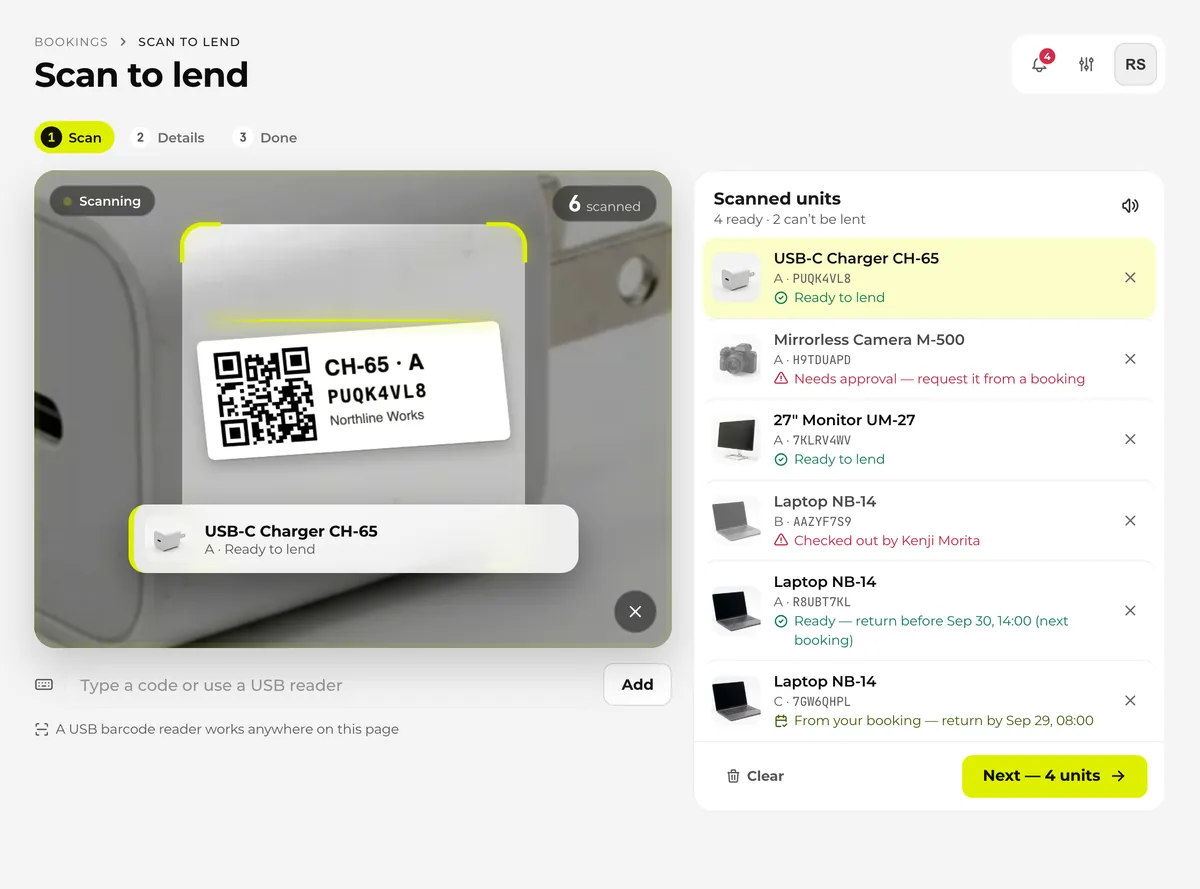
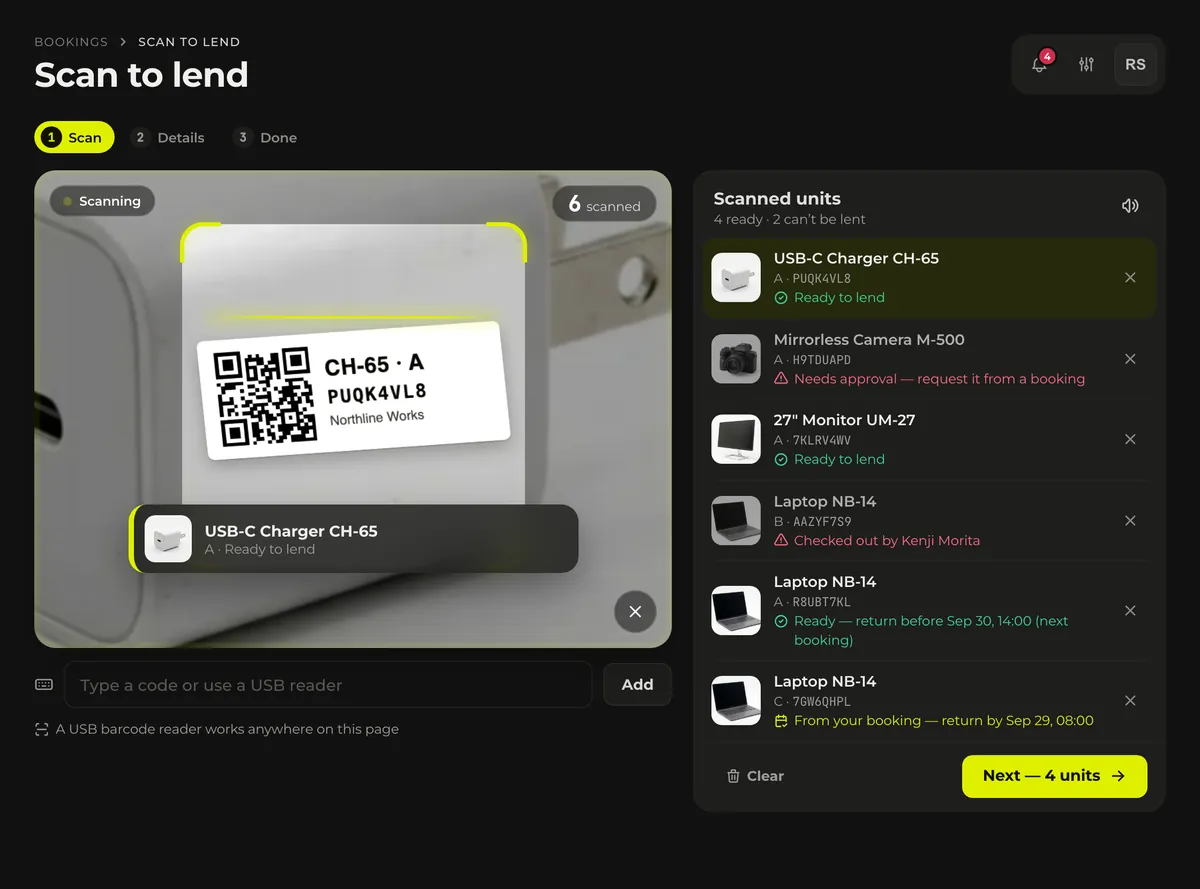
- Each scan plays a sound and adds the unit to “Scanned units” (on the right on a PC, below the camera on a phone). Move straight on to the next label.
- When you’re done, tap “Next — N units”.
You can lend up to 50 units at a time. Use “Remove” to take out a unit you scanned by mistake, or “Clear” to start over.
What the sounds mean
- A unit that can be lent: one high beep, like a checkout till.
- A unit that can’t be lent, a code that isn’t a Werp™ label, or a code that isn’t found: two low tones.
- A unit that’s already in the list: one soft tone.
- Lending finished: three rising tones.
Mute the sound with the speaker button next to the “Scanned units” heading. The setting is kept on that device only. Phones that can vibrate give a short vibration on every scan, even when muted.
Scanning without the camera
- Type a label’s code into the field under the camera and tap “Add”. It’s handled the same as a camera scan.
- With a USB barcode reader connected to a PC, scans are picked up anywhere on this screen, so you don’t need to click into a field first. Use a reader that types like a keyboard and sends Enter at the end.
- On a dark shelf, “Flashlight” turns on the phone’s light (on devices that have one). If the camera stays on the same label, it isn’t counted again for 2.5 seconds.
Reading the results
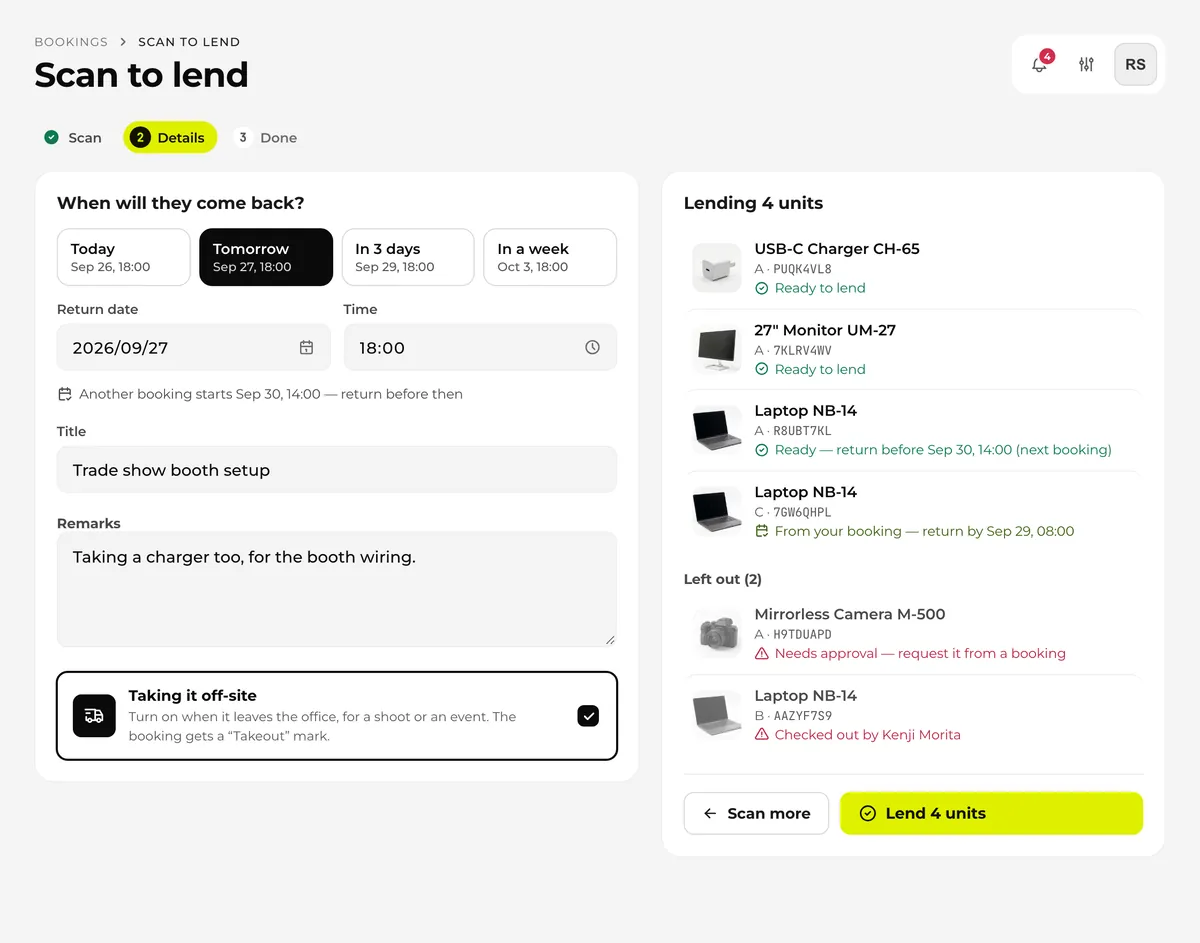
Each unit in the list shows whether it can be lent right now. Units that can’t be lent stay in the list with the reason and are left out of the loan. You never end up holding something the screen quietly ignored.
| Shown | What it means |
|---|---|
| Ready to lend | It can be lent as is. |
| Ready — return before … (next booking) | Someone else has booked it later. Set the return time before then and it can be lent. Set it later and it overlaps that booking and is left out. |
| From your booking — return by … | The borrower already booked this unit, so it’s picked up from that booking instead of a new one (see “Picking up a unit you booked” below). |
| Checked out by … | It’s still lent to someone else and the return hasn’t been recorded. If it’s actually back, record the return on that booking first. |
| You already have this | The borrower already has this unit checked out. |
| Overlaps …’s booking (…–) | Someone else has a booking before your return time. Bring it back earlier or take a different unit. |
| Assigned to someone — can’t be lent | The unit is assigned to a person. |
| Status is … — can’t be lent | The unit is In use, Maintenance, Lost or Retired. |
| Not available to this borrower (borrowing rules) | The lending rules don’t let this borrower take the unit. |
| Needs approval — request it from a booking | This screen doesn’t create approval requests. Make a booking and pick the unit up once it’s approved. |
| Your booking is waiting for approval | The borrower’s booking hasn’t been approved yet. |
| In use in another workspace | It’s a personal item, and its owner has it checked out or in use in another workspace. |
Scans that don’t go into the list
In these cases a message appears on screen, but nothing is added to the list.
| Shown | What it means |
|---|---|
| Already in the list | You scanned a unit that’s already in the list. That unit is highlighted. |
| This label belongs to another workspace | The unit is in another workspace you belong to. Switch to that workspace and scan again. |
| No unit with this code | The unit was deleted, or it’s outside your visibility, so you can’t see it. |
| Not a Werp™ label | The code isn’t a Werp™ QR label. Scan the QR code on a unit label. |
| Up to 50 units at a time | The list has reached 50 units. Lend these first, then keep scanning. |
Picking up a unit you booked
If the borrower has a confirmed booking for a unit you scan, it’s picked up from that booking instead of creating a new one. This covers bookings that have already started and bookings that start before the return time. Before a return time is set, it looks at bookings starting within 24 hours.
- The unit stays due at the end of the booking. The return time you pick on this screen doesn’t change that.
- If you pick it up before the booking starts, Werp™ checks that no one else has a booking or loan between now and the start. If someone does, the unit shows as overlapping that booking and is left out. Early pickup from the booking page runs the same check.
- While the booking is waiting for approval, it shows “Your booking is waiting for approval” and can’t be picked up. Scan it again once it’s approved.
Setting the return time and details
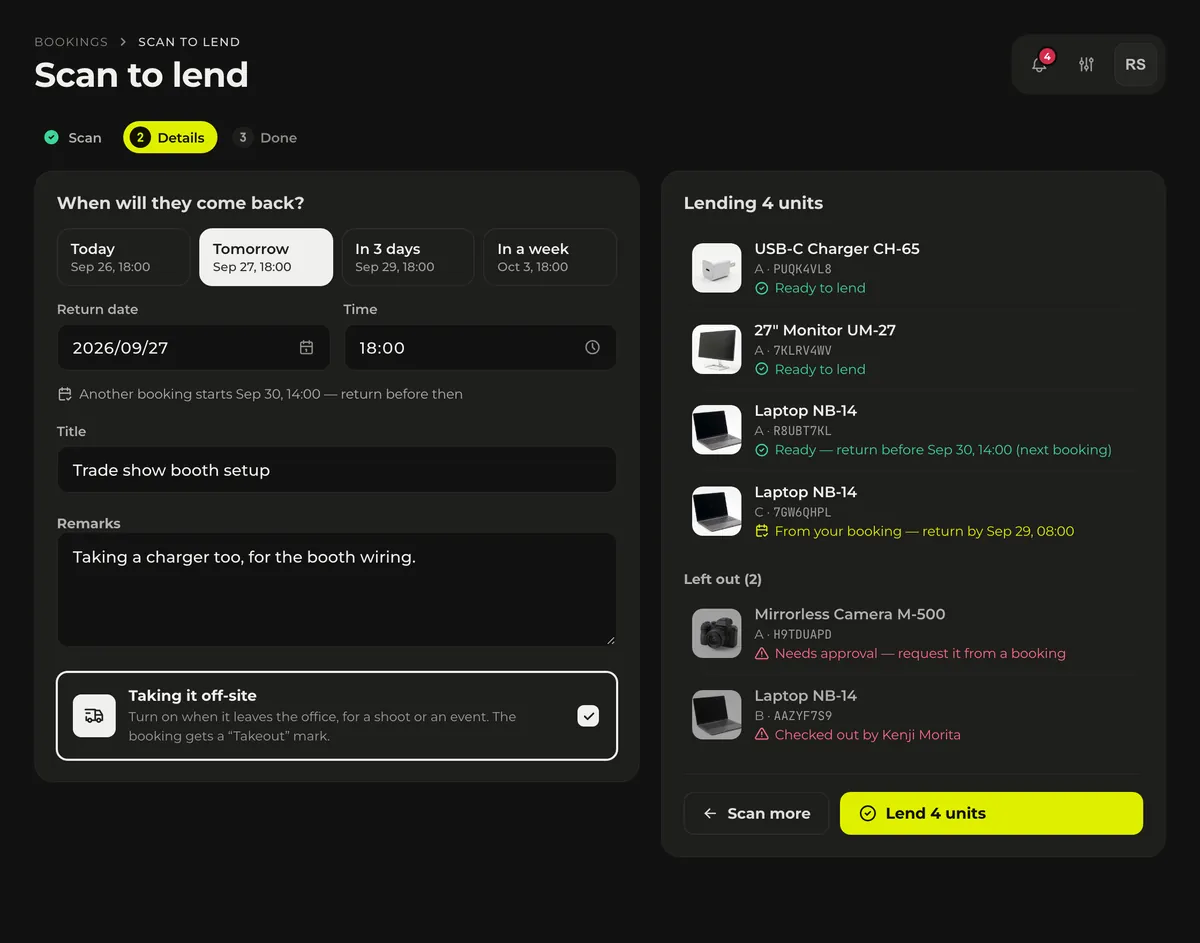
“Next” opens “When will they come back?”. Today, Tomorrow, In 3 days and In a week all mean 18:00 on that day, or you can pick a date and time yourself. Times use the time zone in your display settings.
- Each time you change the return time, every unit in the list is checked again. If a unit has a later booking, the screen says “Another booking starts … — return before then”. Set the return time after that and the unit is left out.
- Title, remarks and taking it off-site work the same as in a normal booking. If you leave the title empty, the booking is named after the item.
- Admins and managers also see a “Borrower” field. Changing the borrower rechecks everything against that person’s bookings and lending rules.
- “Lending N units” and “Left out” let you review the list before you lend. Use “Scan more” to add anything that’s missing.
Lending
When you tap “Lend N units”, each unit is checked once more and then lent. Units without a booking get one from now until the return time and are picked up, and those new bookings are grouped together.
- If someone else checked out the same unit between your scan and the button tap, only that unit is skipped and the rest are lent. The finish screen shows the result for each unit.
- If a booking made by this screen doesn’t end up checked out, it’s cancelled, so it doesn’t keep blocking the slot.
- If you’ve allowed location access on the device, the place you lent from is recorded too. Units connected to Google Calendar get an event written, as with any booking.
- When admins and managers lend to someone else, the borrower gets one in-app notification that says how many units they took.
“Scan again” on the finish screen starts the next loan. “Open the booking” opens the booking you just made.
Returning
The “Scan to lend” screen doesn't take returns. To return everything at once, tap “Check in all” under “Items in this booking” on the booking detail page. To return units one at a time, tap “Confirm Return” on each booking, or scan the unit's QR label with your phone camera and tap “Check in” on the page that opens. Units picked up from an existing booking are returned on that booking. Return reminders and overdue notifications arrive as for any booking.
Pickup and return, multi-item bookings, return remindersBookingsWhat it can’t do yet
- Scanning labels one after another on this screen to return them all at once. One at a time, tap “Check in” on the page that opens when you scan a QR label with the camera.
- Scan to lend on the Kiosk (a shared device).
- Scan a whole set at once. Scan the units in a set one by one.