

What the asset ledger does
The asset ledger lists your units grouped by the asset number you gave them. Open it from "Manage" in the sidebar, or from "Tools" on the equipment list.
- The asset number is the number from your accounting fixed-asset register. Units with the same number count as one asset.
- If 20 meeting-room chairs are one asset in your books, give all 20 the same number (a grouped asset). Put the purchase price on one representative unit only.
- When only part of a set is retired (2 of 20 chairs, say), retire just those 2 units. The ledger then counts 18 units and keeps the representative unit's price. If the representative unit that carries the price is retired, the asset number shows no price in the normal view (retired units hidden), so enter the price on one of the remaining units.
- Werp™ doesn't decide whether the purchase price includes tax. Enter it one way consistently, following your company's accounting.
- Units without an asset number are listed separately under "Not on the ledger" — low-cost items you do not book as fixed assets.
- Equipment you do not manage as assets, like meeting rooms, phone booths or supplies, can be set to "Keep off the asset ledger" in the equipment editor; it then leaves the off-ledger list and the CSV. You can also do it from the ⋮ on a row of the "Not on the ledger" tab. Units with an asset number stay on the ledger either way.
- Admins and managers can open it. Members do not see it.
Give units an asset number
There are three ways to do it.
- One at a time: enter the asset number, serial number, purchase date, price and vendor under “Purchase & accounting” on the “Units” page when you register the item (for two or more units, in the asset number column of the table), or later on a unit with ⋮ → "Edit". After a unit is registered, only admins and managers can change its accounting fields.
- All at once: give the fixed-asset register exported from your accounting software to the equipment import as it is. Headers such as "Asset No.", "Asset description", "Acquired", "Acquisition cost", "Qty" and "Location" are matched automatically.
- Fix later: edit units.csv from the asset ledger in Excel and import it again; existing units are updated by their unit code (see "Hand the CSV to accounting" below).
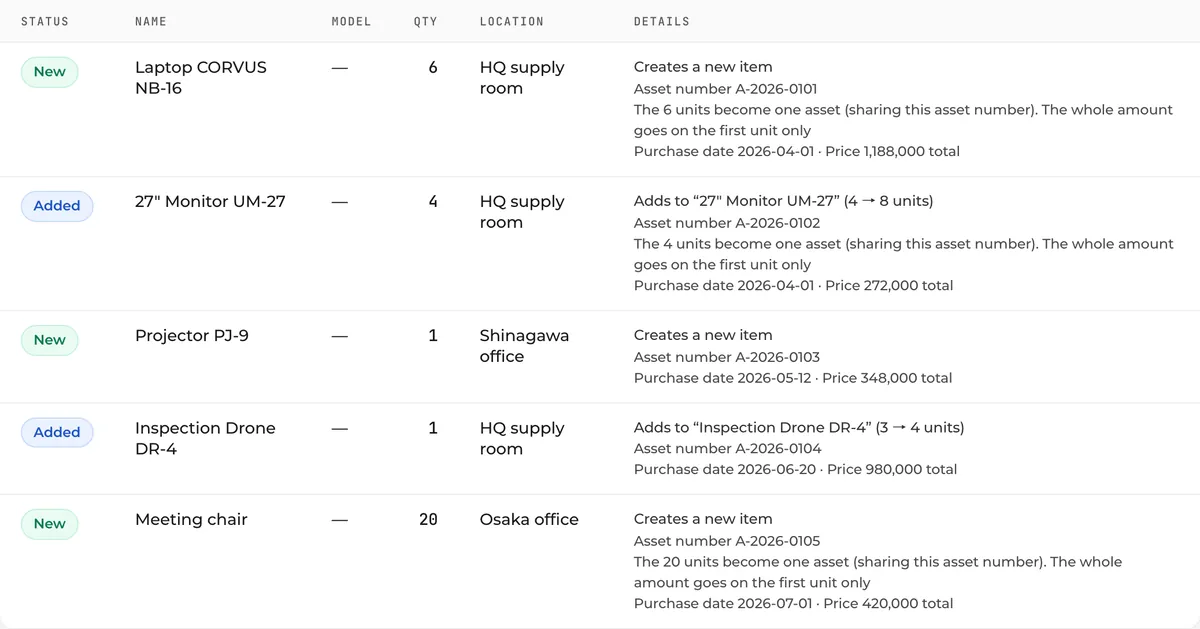
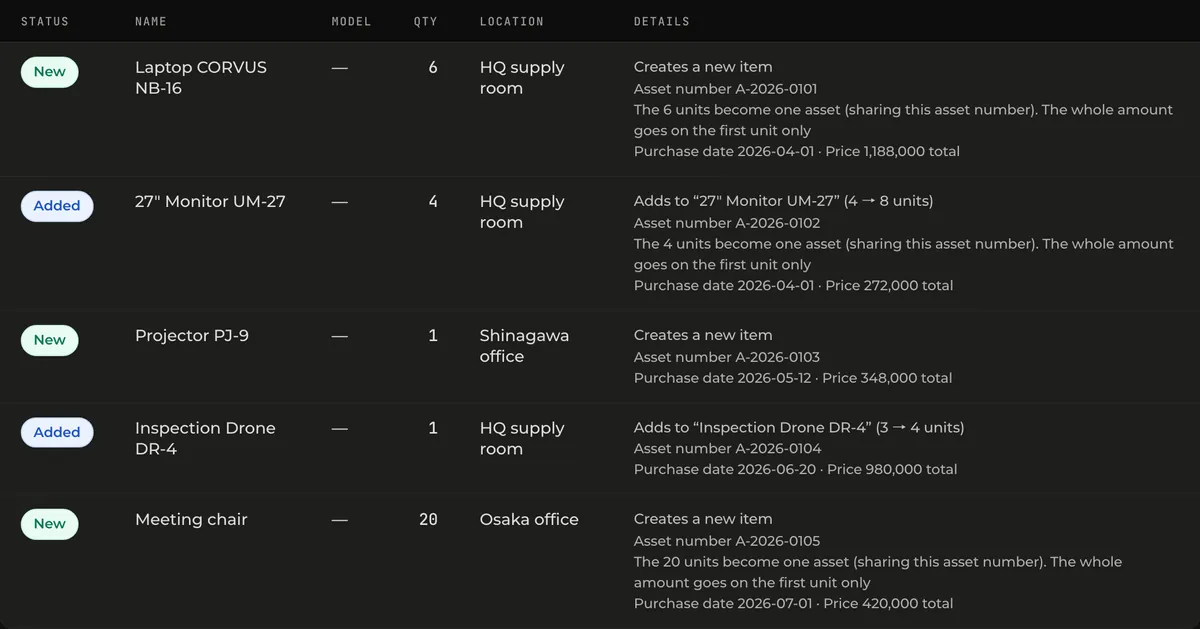
The import review shows the asset number on each row, and for rows with a quantity above 1, that the units become one grouped asset. You can check this matches how your books split them before anything is saved.
See the whole ledger
Who can do thisAdmin, Manager
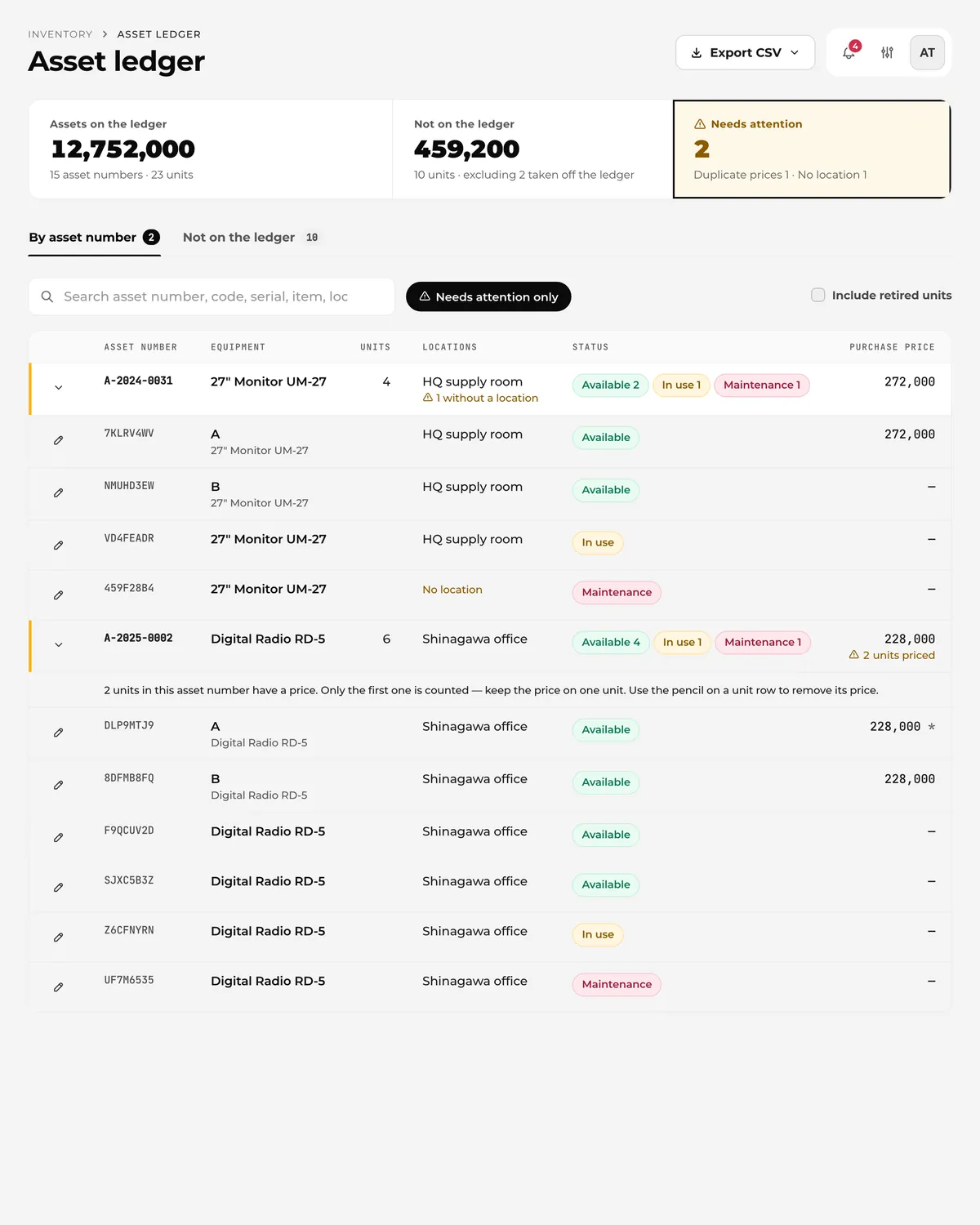
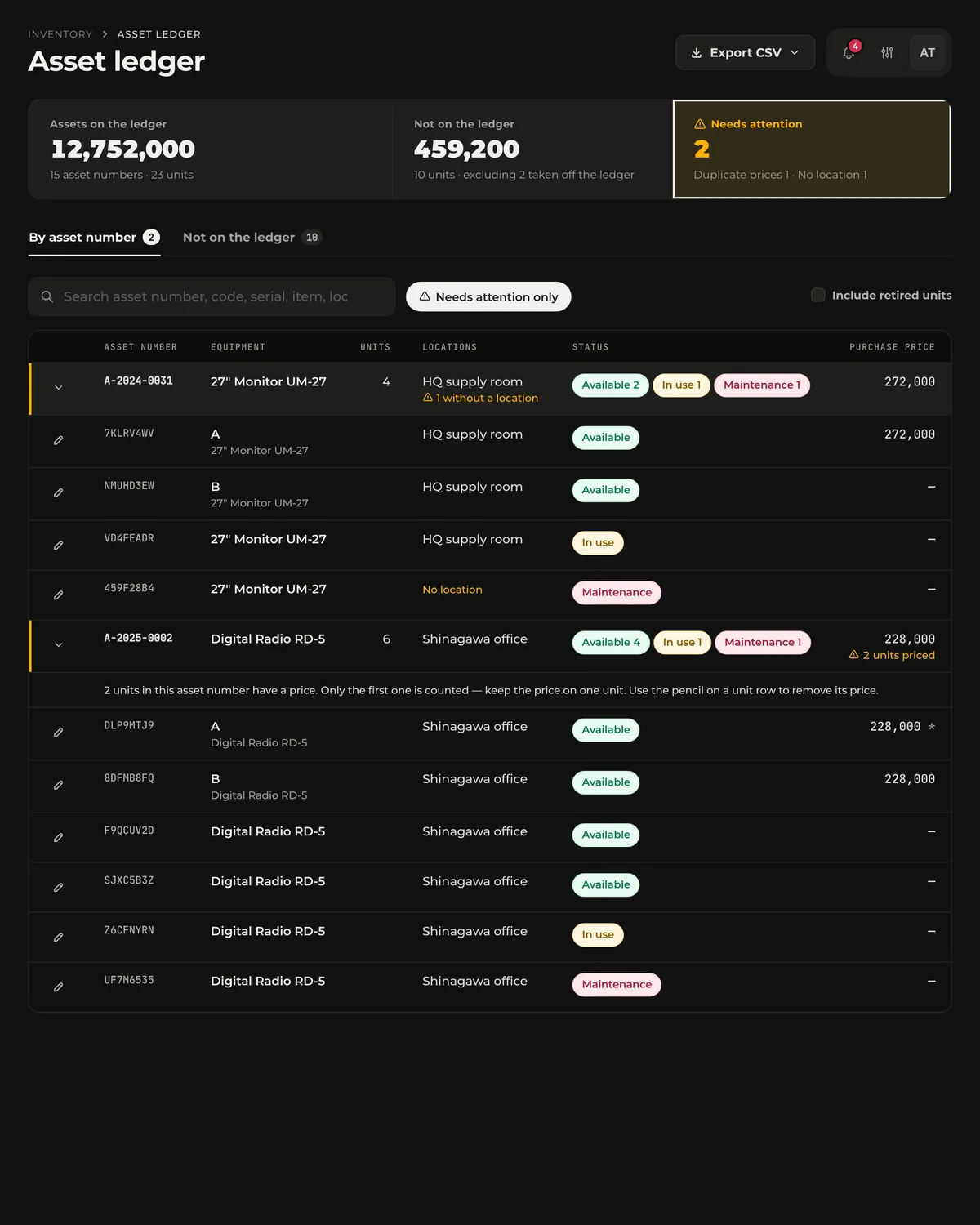
A band at the top shows three figures: assets on the ledger (total price, asset numbers, units), not on the ledger (total and units), and needs attention. Below are the "By asset number" and "Not on the ledger" tabs; the asset-number table shows unit count, equipment, locations, status breakdown and purchase price.
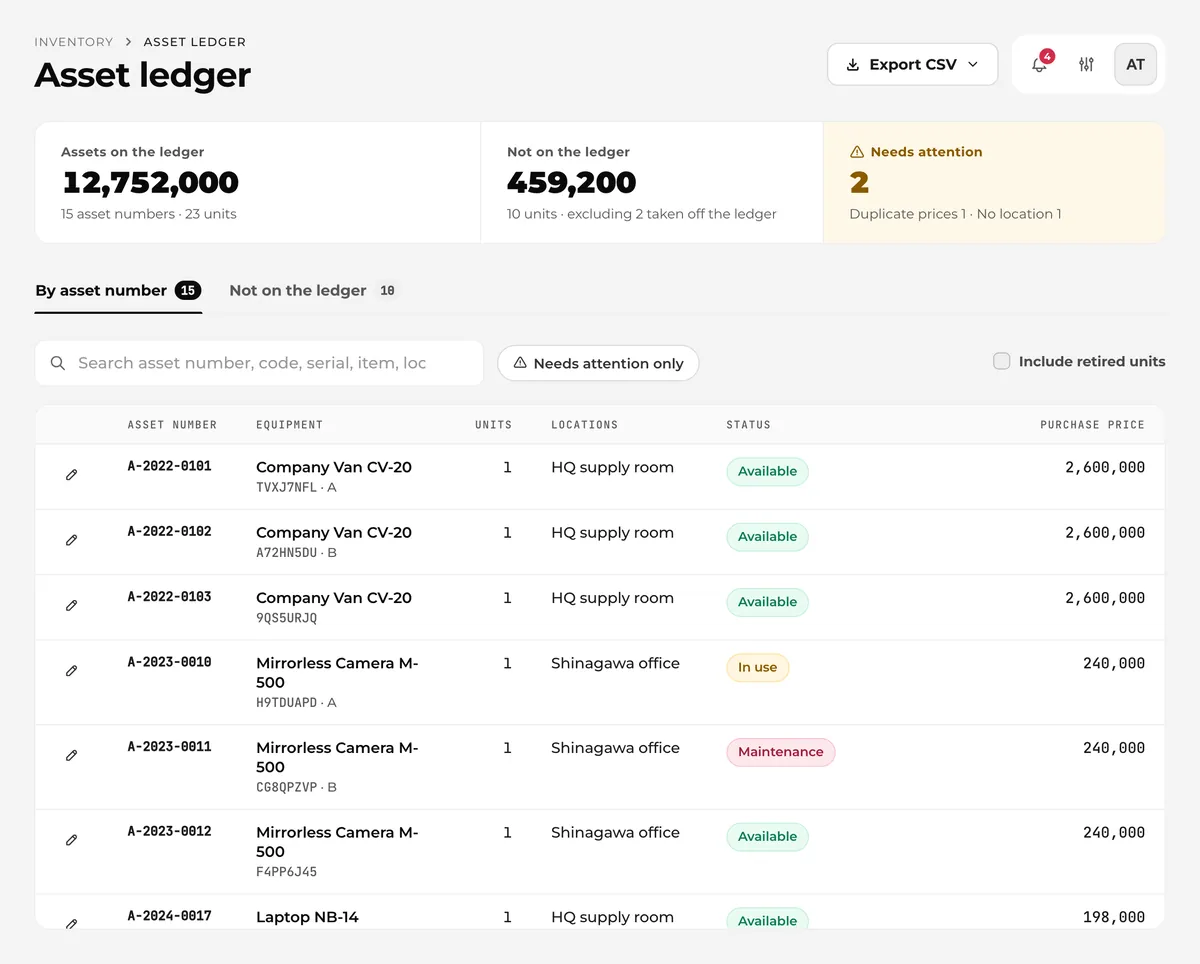
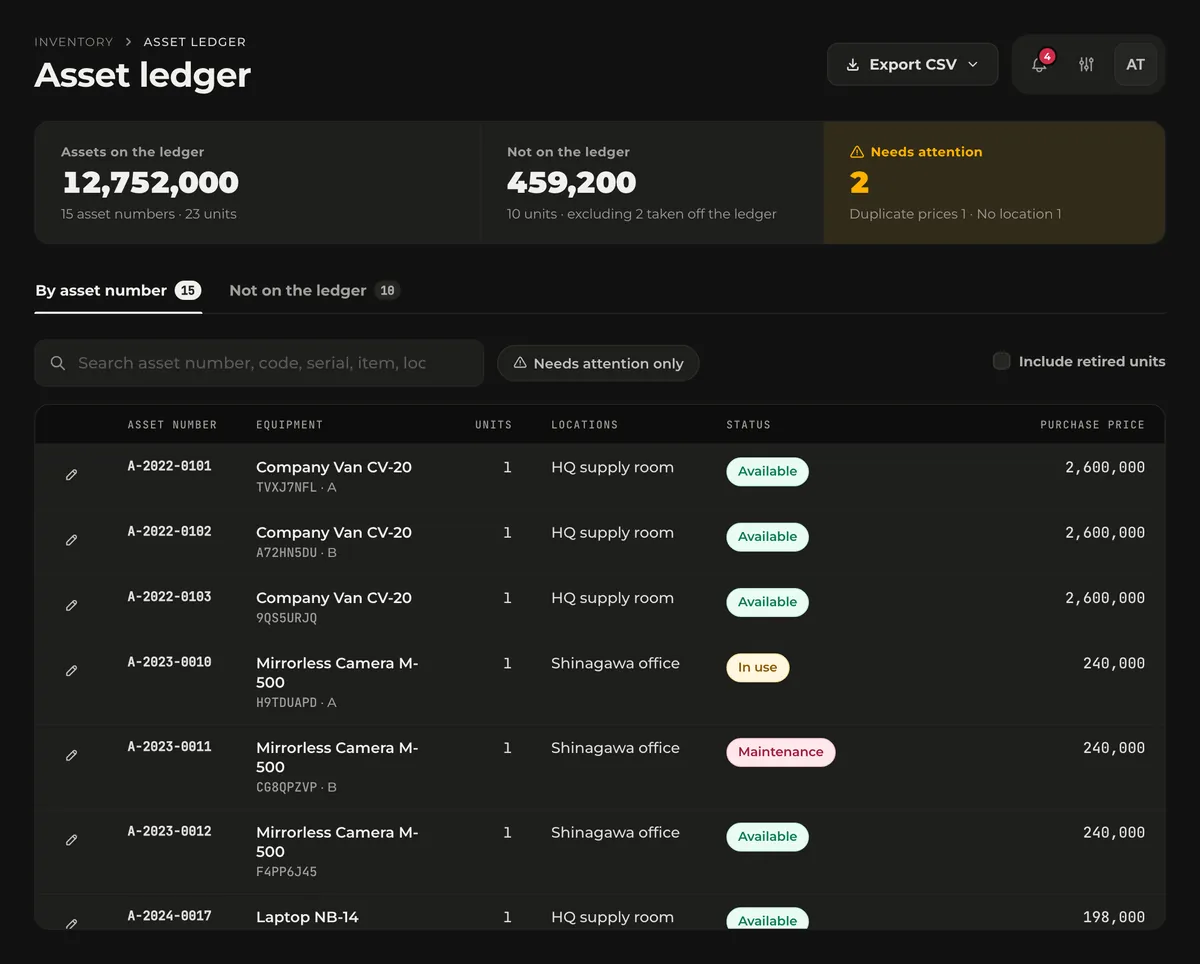
- An asset number with one unit takes one row, with the item name, unit code and assignee. For an asset number with several units, open the row to list them. Click a name to open the equipment with that unit at the top.
- If two or more units of a grouped asset have a price, you get a "2 units priced" warning; only the first one is counted. The pencil on the left of a unit row opens that unit's editor right there, so you can remove the extra price.
- Units assigned to a person show who they are assigned to.
- "Needs attention" counts asset numbers where two or more units of a grouped asset have a price, or where a unit has no location. Click it to show only those. Bring it to zero before year-end and the CSV you hand to accounting is consistent.
- Search by asset number, unit code, serial number, item name, location or assignee. Asset numbers with a matching unit are shown with all their units. The figures in the band stay whole-workspace.
- Turn on "Include retired units" to count units you sold or disposed of.
Retirement and history
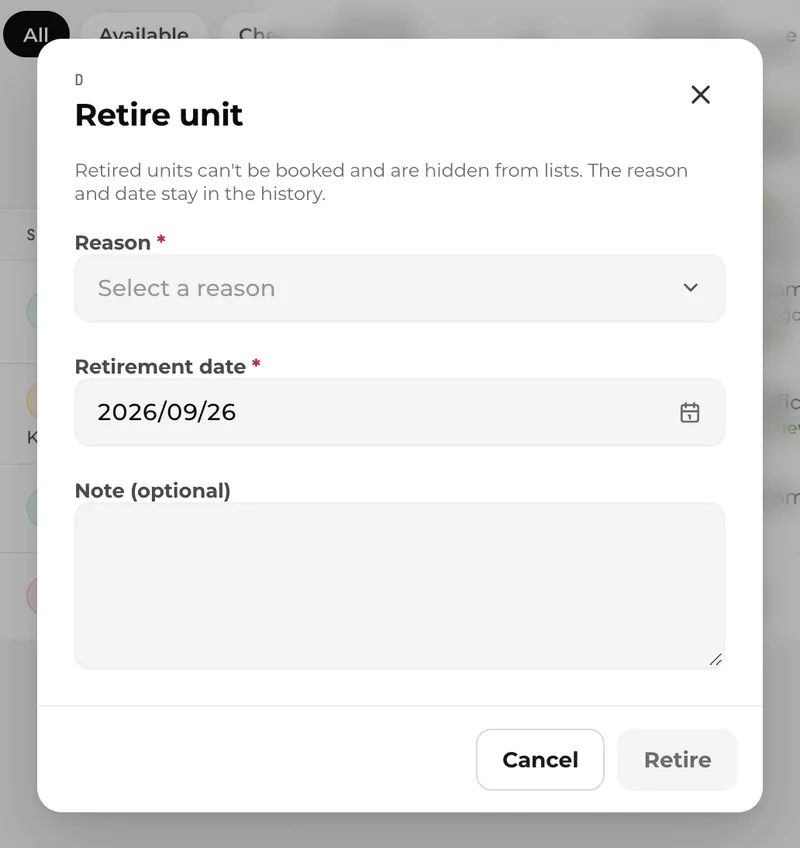
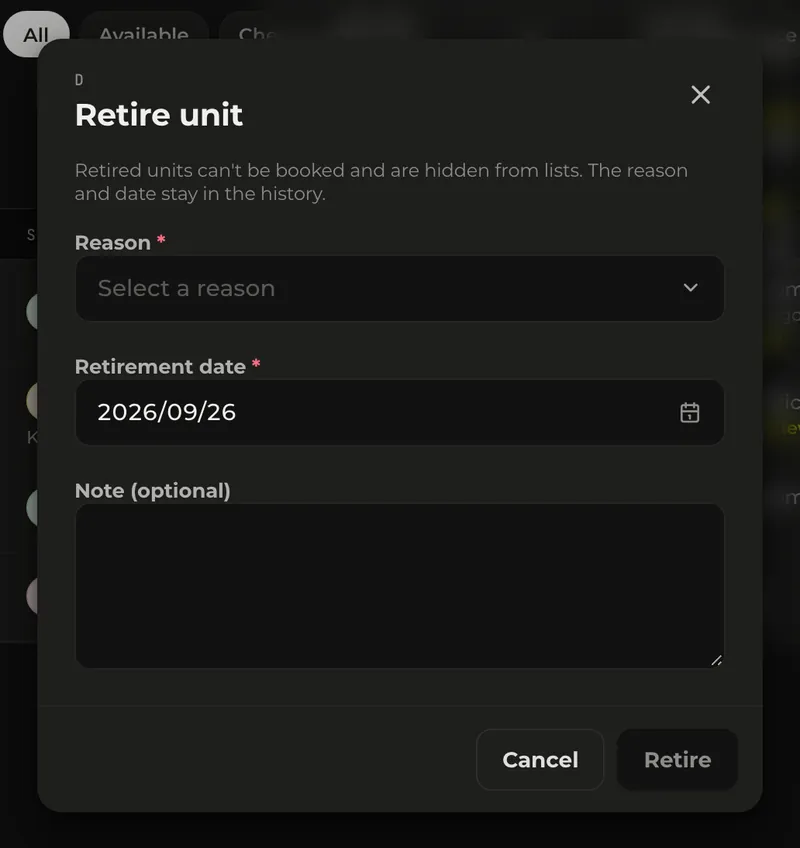
When you sell, dispose of or lose a unit, set its status to "Retired". A reason and a date are kept so you can explain it to accounting later.
- A reason is required (disposed, sold, transferred, lost for good, or other).
- The retirement date can be in the past, so entering it later still keeps the real date. Future dates are not allowed.
- Retired units are hidden from lists, can no longer be booked and do not count toward your plan's limit.
- Retiring and deleting are different. Retire what you sold, disposed of or lost, so the reason and date stay. Use “Delete” only to correct a registration mistake. Deleted units stay in the history, but without a reason.
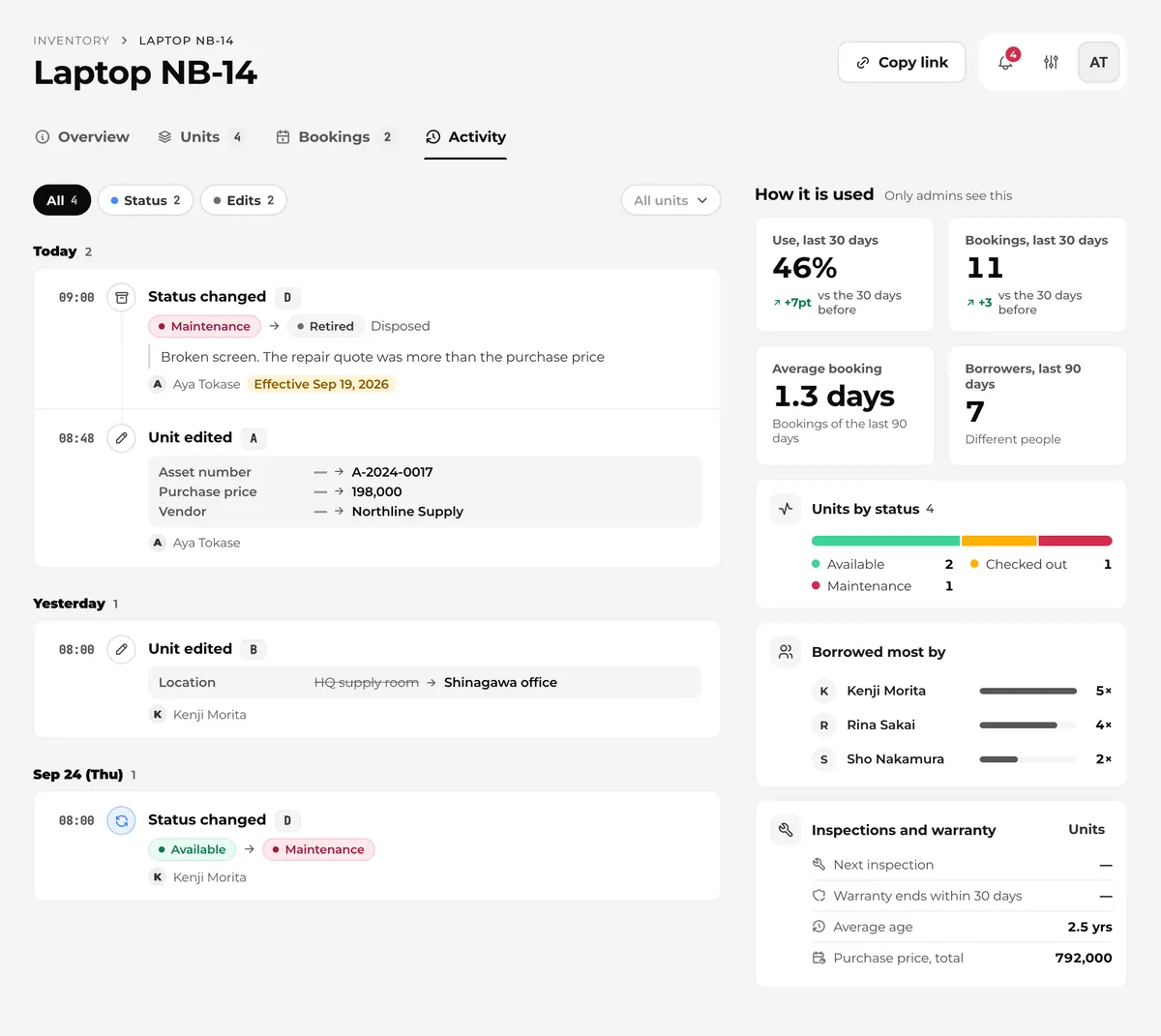
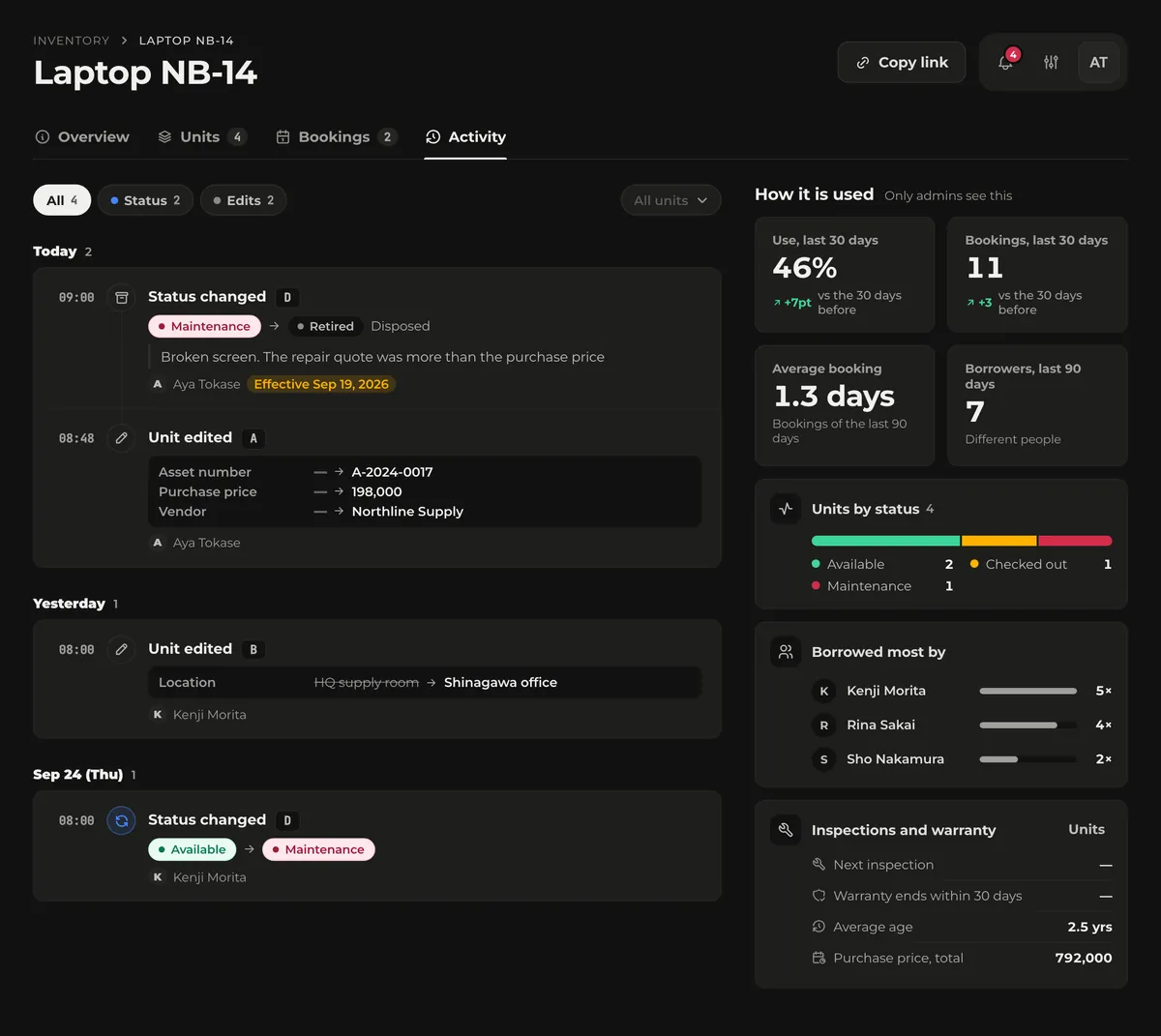
Changing an asset number, price, location and so on leaves the before and after in the equipment's "Activity" tab. A retirement entered later shows its real date ("dated Sep 19, 2026").
Hand the CSV to accounting
Export from "Export CSV" at the top right of the asset ledger. Accounting matches the files to the register in your accounting software by asset number.
| File | One row is | Main columns |
|---|---|---|
| Units (units.csv) | One unit | Code, asset number, serial number, item, status, location, owner, assignee, purchase date, price, vendor, last scanned, retired on, retirement reason |
| By asset number (assets.csv) | One asset number | Unit count, representative price, priced units, items, locations, units without a location, status breakdown |
- Excel opens them as they are (UTF-8 with a BOM). Cells that could be read as formulas are made harmless.
- Export with "Include retired units" on to add retirement dates and reasons.
- Edit units.csv in Excel and import it to update units in bulk. Only the cells you changed are applied, and you see each change before and after on the review screen first.
- "Export changes in a period" in the "Export CSV" menu gives only the units added, retired or deleted in the period, plus changes to asset numbers, prices, locations and assignees, one per row. It starts from the day after the last export, so each month you can hand accounting just the differences. The period is cut by the day a change was recorded; the real date of a retirement entered later is in the effective_on column.
- "Export for accounting software" in the "Export CSV" menu writes one row per asset number in the import layout of freee, Money Forward Cloud Fixed Assets, Yayoi Kaikei Next or PCA Fixed Assets (accounting software for Japan). Choose assets added in a period, retired in a period, or all of them, in UTF-8 or Shift_JIS. Werp™ doesn't keep the account, depreciation method or useful life, so those columns are blank for accounting to fill in before importing.
- In the accounting-software layouts, Werp™ fills in the asset number, name, acquisition cost (the representative unit's price, in whole yen), acquisition date (the earliest purchase date among its units), quantity (the number of units, in layouts that have a quantity column), and the serial numbers and unit codes (in each package's memo field). An asset is exported as retired only when all units with that asset number are retired; partial retirements come through “Export changes in a period”.
- “Last export” is the last period exported in the workspace, whoever exported it. A retirement entered after closing with last month's date appears in the export for the month it was entered, with last month's date in the effective_on column.